If you have Autodesk software installed on your computer, you may have noticed this icon in your system tray.

That icon belongs to Autodesk Desktop Connector. a feature that plays an important role in modern CAD/BIM workflows.
What Is Desktop Connector?
Autodesk Desktop Connector is an application that creates a virtual drive on your computer, connecting your local folder structure with Autodesk cloud storage such as Autodesk Docs, Autodesk Drive, and Fusion. In other words, it allows cloud data to appear and behave like regular folders in Windows Explorer.
It works in a similar way to Dropbox, Google Drive, or OneDrive, but specifically for Autodesk storage systems like Docs.
What Is Desktop Connector Used For?
Desktop Connector is designed to let you manage Autodesk cloud files as if you were working locally, without opening a web browser. You can open, save, copy, move, or delete files directly from Windows Explorer.
Desktop applications can also open files stored in Autodesk Docs as if they were located on a local hard drive, without manually downloading or uploading files through a browser.
Each time you save a file, a new version is created in Autodesk Docs. If versioning is critical in your project, you should be careful when working with files through Desktop Connector.
How Desktop Connector Works
In general, Desktop Connector works as follows:
Virtual Drive
After installation and signing in, Desktop Connector creates a virtual drive in Windows Explorer. This drive displays the folder structure from Autodesk Docs (or Drive/Fusion).
However, even though the folder hierarchy is visible, files are not fully downloaded to your local machine until you open them or mark them as “Always keep on this device.”
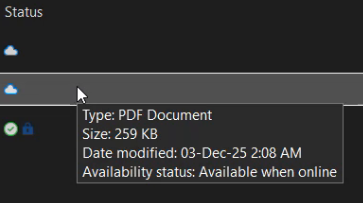
This means only the data you actually need will be stored on your local hard drive.
File and Folder Synchronization
Working with Autodesk Docs often means following a predefined folder structure and handling a large number of files. With Desktop Connector, you can download and upload files and folders in the background, without manual interaction through a web browser.
Advantages of Desktop Connector Compared to Working in a Browser
There are several situations where Desktop Connector is more beneficial than using Autodesk Docs through a web browser.
Integration with Windows Explorer and Desktop Applications
With Desktop Connector, files are visible and accessible directly from Windows Explorer, without navigating through a browser. This also allows files to be opened directly from applications such as AutoCAD or Revit.
One thing to keep in mind is that frequent saves can quickly increase the number of file versions. It is often a good idea to separate working folders from shared folders.
More Efficient for Uploading and Downloading Files
Regularly uploading and downloading files can be inefficient, especially when dealing with many folders and subfolders. Desktop Connector allows you to take advantage of Windows file management features, while synchronization happens automatically in the background.
To Sum Up
If you want to avoid workflows that rely on repeated manual downloads and uploads, Desktop Connector is worth considering, especially when working with large numbers of files and folders.


