Are these issues familiar to you? Sync takes more than five minutes. Revit crashes before lunch. Someone imported that CAD file. By then, the damage is done. Autodesk Revit Model Analytics takes a different approach. If you are working with cloud models or cloud worksharing, this will help your team to avoid those problems. It watches the model while the team works.

1. Why a Healthy Model Matters
A model that opens may not be a healthy model.
Health shows in sync time, file size, warnings and stability. When it drops, it affects everyone, not only the BIM manager. Designers wait for syncs, coordination slips, and recovering a bogged-down model can take hours.
The causes are very common:
- CAD files imported instead of linked
- In-place families where a loadable family belongs
- Imported images and too many links
- Warnings nobody resolves
- Team members syncing with different minor versions, such as Revit 2027.1 and 2027.2
Most BIM managers know this list. The hard part is seeing it in time, without proper tool to analyze the problem.
2. What Is Model Analytics?
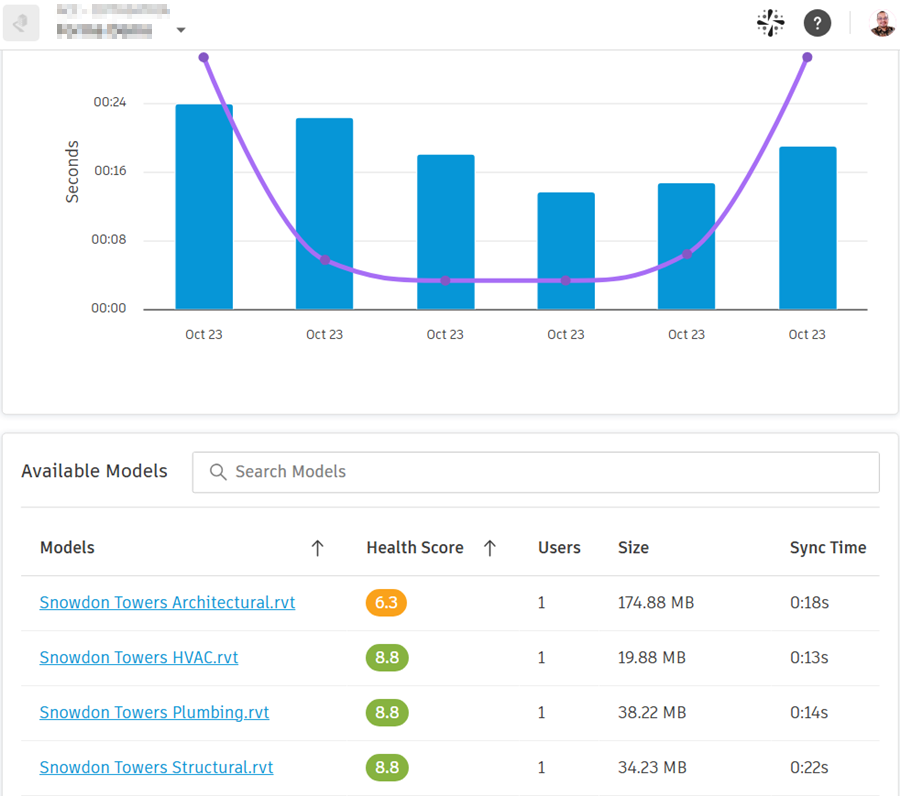
Autodesk Model Analytics (AMA) is a cloud-connected add-in for Revit cloud models. Each time someone syncs a workshared model, or saves a cloud model, it sends model data to a cloud service. The results appear as dashboards in Autodesk Forma Insight. So you don’t need to open Revit or run a separate tool to review them.
3. Who Can Use It?
Anyone who uses Revit 2024 to 2027 and works with cloud worksharing and/or cloud models can send the model health information to Forma.
To see the model analytics insight dashboard, you need to be given access to Insight. Project Members and Project Admins can view the project and model reports, read-only. Executive access is only needed for the hub-wide view. BIM coordinators and BIM managers will use it most, but the color-coded scores are simple enough for designers and project managers to quickly notice if there’s any issue.
4. How to Enable It
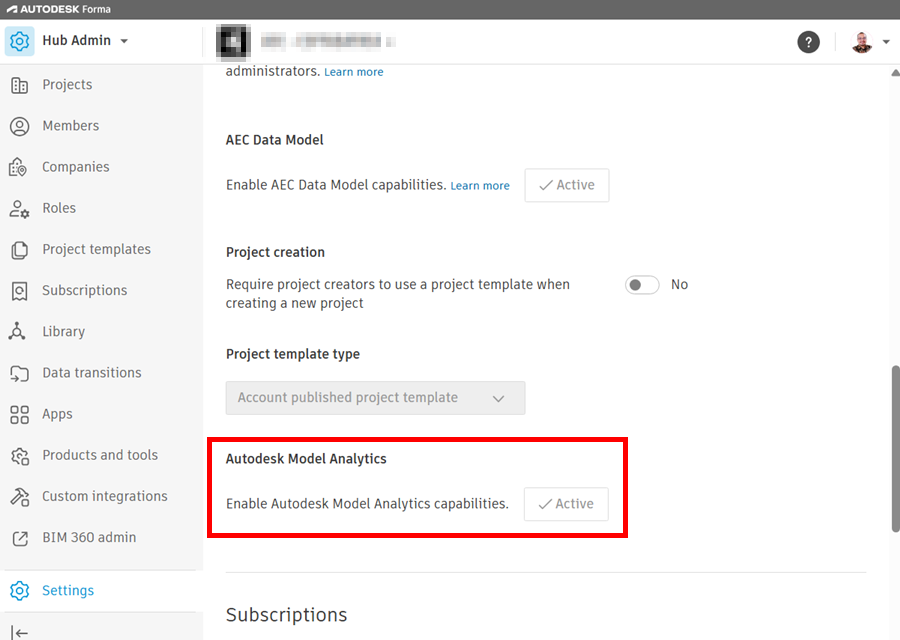
Model Analytics is off by default, and installing the add-in alone does nothing. Setup takes three steps:
- Activate it for the hub: An Account Admin opens Hub Admin > Settings > Advanced and clicks Activate.
- Install the add-in on every Revit computer: Download Autodesk Model Analytics for Revit from manage.autodesk.com (Products and Services > Revit > View Details > Extensions).
- Sync the model: Data appears only after you Sync with Central or save the cloud model. All the models that you sync before you enable Model Analytics and with Revit without the extension will not have the data.
Then open the project in Autodesk Forma and go to Insight > Model Analytics.
5. What You Can Review
Reports come at three levels: one model, one project, or the whole hub.
Health Score: A score card built from the health indicators, from 0 to 10. Green is 7.8 and above, orange is 5.0 to 7.7, and red is below 5.0. A history chart shows whether the score is improving or getting worse.
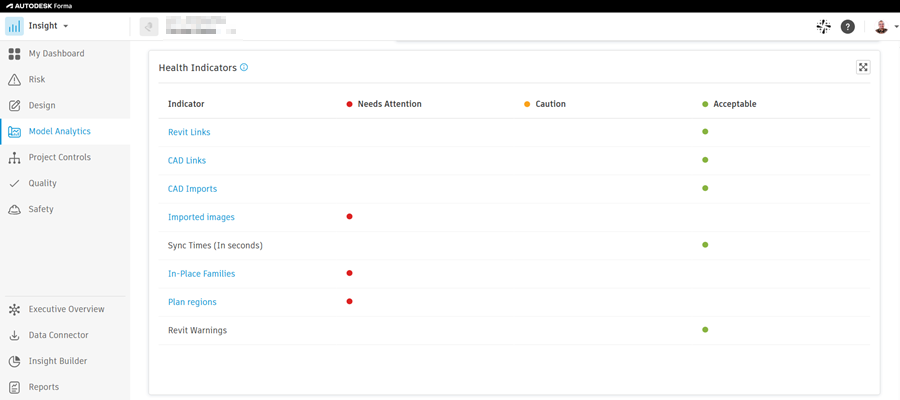
Health Indicators: Each indicator is rated Acceptable, Caution or Needs Attention against default thresholds:
| Indicator | Caution at | Needs Attention at |
|---|---|---|
| Revit warnings | 100 | 200 |
| Revit links | 4 | 6 |
| CAD links | 4 | 6 |
| CAD imports | 1 | 2 |
| Imported images | 5 | 10 |
| In-place families | 1 | 2 |
| Plan regions | 3 | 5 |
| Sync time (seconds) | 25 | 50 |
Yes, a single in-place family already means Caution! The thresholds can’t be edited, at least not yet.
Learn how to read the reports in detail in this Autodesk help article: Model Analytics.
The Bottom Line
Model Analytics doesn’t fix your model. It tells you where to look, and when. Someone still has to remove that CAD import. Someone still needs to keep the file efficient.
What changes is the habit. Model health moves from guessing to monitoring. Continuous model monitoring catches problems before the crash.
How do you track model health on your projects today?


