Revit 2027 updates keep focusing on performance. Large models are a common pain on many projects. You open a model, wait, get a coffee, and even then the model hasn’t opened yet.

Revit 2027.2 adds a tech preview called Incremental Model Open. It’s a small checkbox, but it changes how Revit opens a model.
Why We Need Incremental Model Open
Today, Revit reads the entire model into memory when you open it. Every element, every view, every sheet. Even the parts you won’t touch today.
Before the first view appears, Revit reads the model data, rebuilds element relationships, processes links and imports (RVT, DWG, PDF, images, point clouds), and generates graphics. The bigger the model, the longer you wait. And the more RAM you need.
That is why many teams split models. Not only because the project needs it, but also because the hardware does. A large data center model ends up as several MEP models, just so each one opens in reasonable time.
Incremental Model Open takes a different approach. Revit processes only the data needed for your starting view. The rest is processed when you need it.
| Current open | Incremental Model Open | |
|---|---|---|
| What is processed at open | The entire model | Only data for the starting view |
| Memory at startup | Higher | Lower |
| Open time depends on | Model size | What the starting view needs |
Autodesk claimed the initial tests show up to 1.5 to 2 times faster model open in some scenarios, and 60 to 80% less data processed at open. Your results may vary.
Autodesk calls it the first step of a bigger plan: working with subsets of a model and, later, streaming model data directly from the cloud.
Feature Availability
Incremental Model Open first released as part of the Revit 2027.2 Update, and available for all updates after that.
A few things to know before you try it:
- It’s a tech preview. Read the Autodesk Tech Preview Terms and Conditions when you turn it on. You may want to review it first before make it your team standard yet.
- It’s off by default. You need to enable it yourself.
- It’s an application setting. It applies to Revit, not to a model.
- It only speeds up opening.
- Cloud models still download the entire model. Revit still downloads and caches the whole cloud model before opening.
There are also known limitations, mostly around working with links. Read the details by opening “Learn more about Incremental Model Open” in the option or here: Incremental Model Open (Tech Preview).
Enabling Incremental Model Open
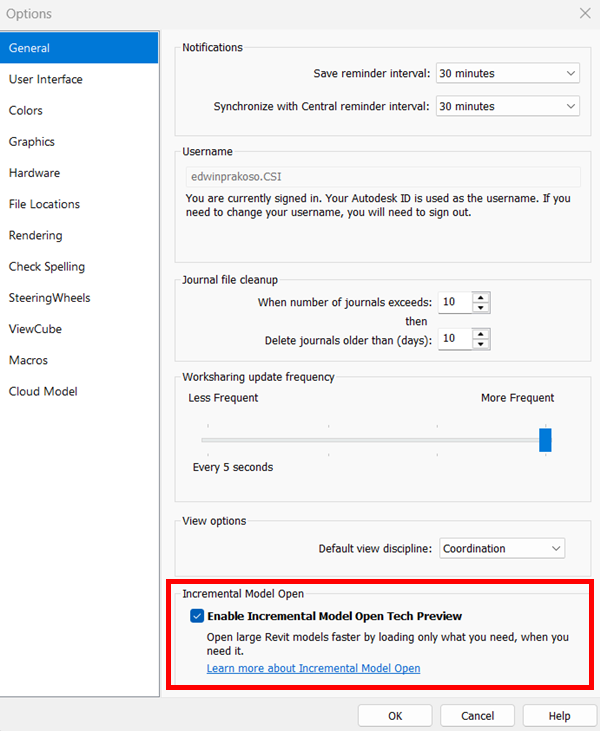
There are two ways to turn it on. You can use the Options dialog or modify Revit.ini file.
Option 1: From the Options dialog
Close all of your models. The setting can’t change while a model is open.
Open Options: Go to File > Options > General. Find the Incremental Model Open section.
Option 2: From Revit.ini
Open Revit.ini, under the [Misc] section, add this line:
IncrementalOpenDynamic=1Start Revit: The feature is active the next session Revit starts. If you have Revit open, you need to close it then restart it.
Back up Revit.ini before you edit it.
Using it
Open your model as usual, all files opened after changing the option will use Incremental Model Open.
You should feel the effect when opening the first view. Opening another view may take a moment, because Revit processes data it skipped earlier.
Tip: Your starting view decides how fast the model opens. Set a lightweight starting view, like a simple drafting view or a project info sheet, in Manage > Starting View.
Summary
Incremental Model Open doesn’t make Revit faster. It moves work from the moment you open a model to the moment you actually need the data. For large models, that can mean a much shorter wait and less memory at startup.
It’s a tech preview, so it is resommendeed to try it on project copies first.


