If you learned AutoCAD in the last ten years, you probably learned it from the ribbon. Nothing wrong with that. The ribbon is easier to explore than remembering what command to type on a blinking command prompt. Ribbon is consistent with most recent Windows applications.
But some commands never made it to the ribbon. Others sit in places that’s hidden make nobody clicks. AutoCAD veterans still type them every day, because they solve problems that ribbon doesn’t solve faster.
Here are 10 worth stealing from them.
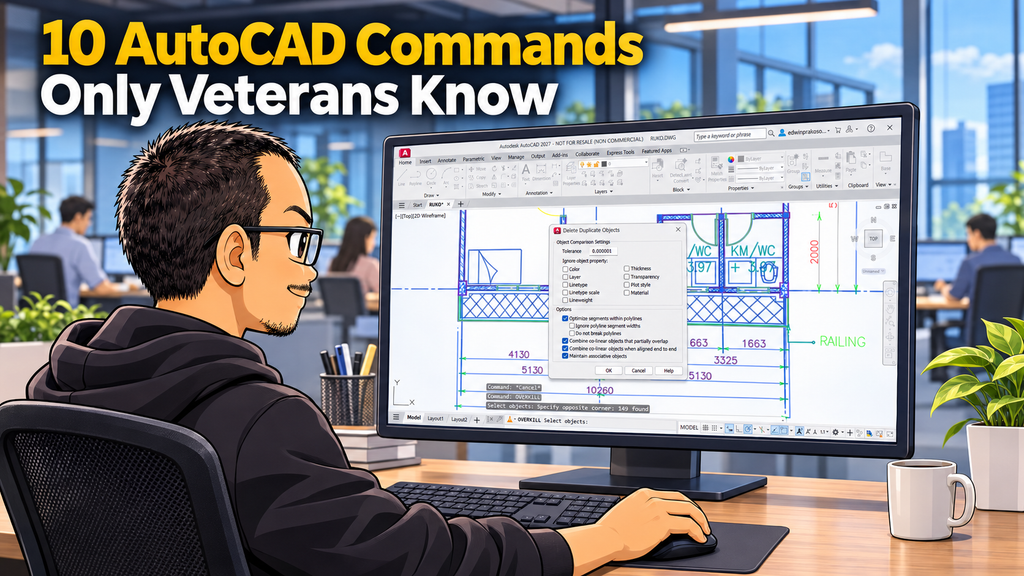
1. MULTIPLE
Some commands end after one action. Draw one circle, and you’re back at the prompt.
Type MULTIPLE, press Enter, then type the command name. AutoCAD repeats it until you press Esc. It works well for CIRCLE, POINT or INSERT when you need many in a row.
It repeats the command, not your input. Options must be entered each time.
And yes, you can press Enter or Space to activate last command too. However, MULTIPLE can be more convenient.
2. OOPS
You erased a group of objects. Then you drew a few lines and moved a door. Now you need the erased objects back.
UNDO would cancel all work you did. OOPS restores only the objects removed by the last ERASE. Everything you did after stays where it is.
It’s a neat trick to remove some objects that interfering when you draw, then call them back!
3. ‘CAL
Need to find a point 1/3 between two reference end points?
When AutoCAD asks for a point, type 'CAL, then type the formula (end+end)/3. The apostrophe runs CAL inside the active command, and the result goes straight into it.
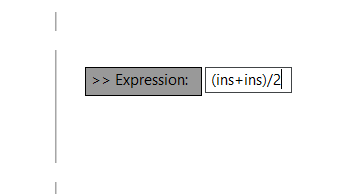
CAL understands basic math if you need to calculate a distance. You can type 1200/3 when you need to calculate an offset value.
Not available in AutoCAD LT. LT users can use QuickCalc instead.
Find more about QuickCalc here.
4. FILTER
Quick Select is great, however real drawings often need more: all circles on layer S-COLS, or all text with a height of 2.5 that is not on layer A-ANNO.
FILTER opens the Object Selection Filters dialog box. You combine conditions with AND, OR and NOT, then save the filter to reuse it later.
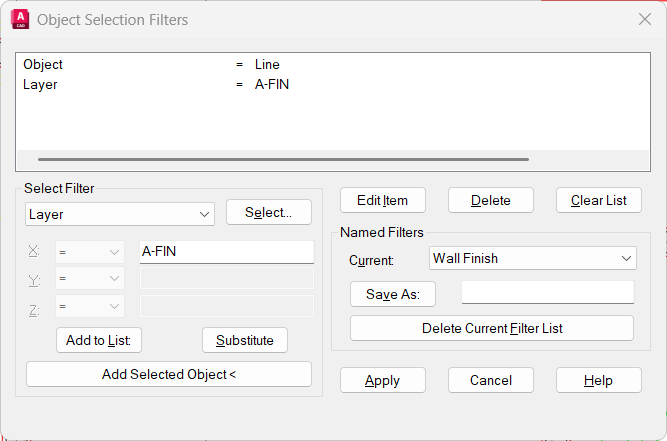
Tips: type 'FILTER at any Select objects prompt. The filter command can run inside MOVE, ERASE or any other command, even with a crossing window.
Find more about FILTER here.
5. EXPORTLAYOUT
A client asks for the sheet “as a normal drawing”. No layouts, no viewports, just everything on one model space. While using layout is a best practice, the client requirement might be different.
Right-click the layout tab and choose Export Layout to Model, or type EXPORTLAYOUT. AutoCAD saves a new drawing with everything visible on that layout in model space.
Check the result before you send it. Linetype scale in xrefs and blocks may not be kept as the original drawing.
6. BURST
Explode a block with attributes, and you get the original attribute tags: PROJECT_NAME, DWG_NO, SHEET_NO. The actual values are gone.
BURST explodes the block but turns each attribute value into plain text, exactly as it appeared. It’s useful when you send drawings to people who don’t need your blocks.
You’ll find it on the Express Tools tab> Blocks panel> Explode Attributes.
Not available in AutoCAD LT.
7. ARRAYCLASSIC
The modern ARRAY command creates associative arrays and opens a contextual ribbon tab. Powerful, but sometimes you just want a simple quick array.
ARRAYCLASSIC opens the old Array dialog box. Set rows, columns and spacing, preview, click OK. The result is separate objects you can edit freely.
8. COPYBASE And PASTEORIG
Ctrl+C and Ctrl+V work between drawings, but you can’t choose the base point. Placing the copy precisely becomes a guesswork.
COPYBASE (Ctrl+Shift+C) asks for a base point first. Pick a reference point then the object. Now when you PASTECLIP or press Ctrl+V you can place the object using a base point.
If both drawings share the same global coordinates, use Paste to Original Coordinates (PASTEORIG) from the right-click Clipboard menu. The objects will be placed at the exact same coordinateas in the source drawing.
9. OVERKILL
Drawings from other parties often have lines drawn on top of lines. They break hatch boundaries, confusing when using snaps and offset. Too many overlapping lines also can inflate the file and make it prone to corrupt.
OVERKILL (Manage > Cleanup > Overkill) removes duplicate and overlapping lines, arcs and polylines. It can also combine collinear segments into one line.
10. UCS Object + PLAN
One wing of the building is rotated. Or the drawing follows the project orientation. Drawing on it with Ortho is painful.
First you need to change the UCS. Type UCS, then OB (Object – or you can pick points to define the UCS), and pick the object as reference. The UCS now follows that object.
To rotate the view type PLAN and choose Current UCS. The view rotates so the wing sits straight on your screen. Ortho, rectangles and polar tracking now follow the building orientation.
To go back, type UCS > World, then PLAN > World.
Old Commands, Real Problems
These commands are old but always relevant to everyday problem. Sometimes knowing a few commands by name can help you to be more productive.
Which old-school command do you still type? Share it in the comments.


