• Home
  • Training Books
  • Subscribe to Our Email Newsletter
  • About
    • Contributors
    • Feedback
    • Contact
    • Privacy policy
    • Cookie Policy

CADnotes

CAD Tutorials and Best Practices for professionals and students

  • Featured
  • AutoCAD
    • AutoLISP
  • Revit
    • Revit Architecture Basic
    • Revit MEP Basic Tutorial
  • Inventor
  • MicroStation
    • MicroStation Basic Tutorial
You are here: Home / AutoCAD / How to add AutoCAD layer information in PDF file?

How to add AutoCAD layer information in PDF file?

June 19, 2012 by Edwin Prakoso 24 Comments

In this Article...

Toggle
  • Choose DWG to PDF plotter
  • Configuring plotter
  • For DWF plotter

This question has been asking repeatedly, so I think I should share it here. The question is: how can we have layer information when we plot to PDF files? The same question is for DWF format. PDF probably is the most popular format for sending documents because PDF reader/viewer is free. The problem is, we still want to have control to our drawings. One of the popular information we want to keep is layer information.
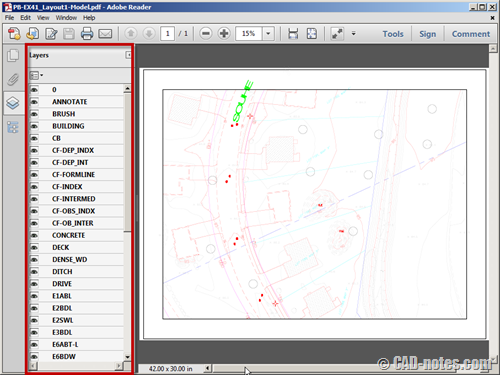
layer information in pdf file

Choose DWG to PDF plotter

When you plot your drawing, choose DWG to PDF plotter. It’s included in AutoCAD installation, so you don’t need any other additional PDF plotter. It is quite good, and actually I think it works better for AutoCAD.

Click properties on the right side of plotter name.
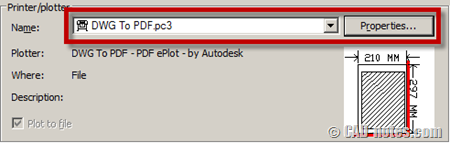
plotter properties

Configuring plotter

In plotter configuration dialog, choose custom properties in the list. Then click custom properties… to make necessary changes.
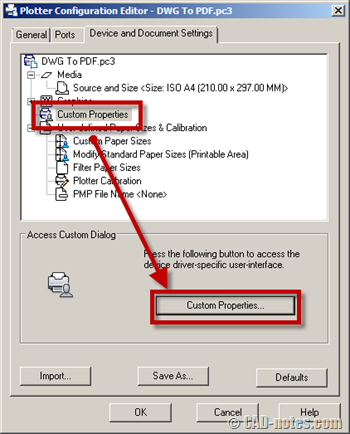
plotter custom properties

Custom properties dialog will open. Make sure include layer information in this dialog is checked.
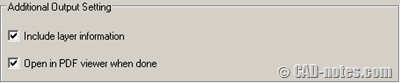
include layer information in pdf

Now click OK until you get back to plot dialog box. Try to plot your drawing.

For DWF plotter

If you want to plot to DWF file and have layer information, you can do the same steps as described above.

Share the knowledge:

About Edwin Prakoso

I work as a Sr. Consultant in PT Cipta Satria Informatika. I've been using AutoCAD since R14 and Revit since Revit Building 9. I occasionally write for AUGIWorld magazine and I am also active in Autodesk discussion forum. I'm a member of Autodesk Expert Elite, an appreciation for individuals who give contributions to the Autodesk community.
Connect with me on twitter or LinkedIn.

Filed Under: AutoCAD Tagged With: autocad tips, layer, PDF

0 0 votes
Article Rating
Subscribe
Login
Notify of
guest

guest

This site uses Akismet to reduce spam. Learn how your comment data is processed.

24 Comments
Rick Bynum
Rick Bynum
8 years ago

I would like to rephrase my question. I have an AutoCAD dwg that I would like to create a PDF with 3 or 4 specific layers visible, when PDF is opened. Once opened, I want the option to turn any or all of the other layers on within the PDF. Is this possible? I am using AutoCAD Lt 2014 and Acrobat DC. Thanks!

0
Reply
Edwin Prakoso
Edwin Prakoso
Author
Reply to  Rick Bynum
8 years ago

Hi Rick,

Unfortunately no. If the layer is off or frozen, then they won’t be in the PDF file.

0
Reply
Rick Bynum
Rick Bynum
8 years ago

How can I create a PDF with only certain layers turned on but still be able to turn any of the other layers on when desired?

0
Reply
ABHAYKUMAR
ABHAYKUMAR
9 years ago

While printing the additional input setting is not displayed only the resolution is displayed on the print screen. Any version issue please confirm.

0
Reply
M
M
10 years ago

Thank you so very much. Saved me a ton of work. :)

0
Reply
Aaron
Aaron
10 years ago

Hi,
I have added info to an existing CAD file but when plotting the drawing the additional info doesn’t show up on the PDF, like its never been added?
All the drawing layers are turned on and everything is as per how I would normally plot so not sure why this is happening?
Can you help?

Thanks
Aaron

0
Reply
« Previous 1 2
wpdiscuz   wpDiscuz

Featured

How does the Autodesk Subscription license affect you?

Have you purchased Autodesk Subscription? How is your experience with the new licensing model? Do you like it better than the old model? Let’s hear your experience!

Recent Articles

  • Automation is not AI
  • BIM Doesn’t Fix Your Problems
  • BIM is Useful, Until It’s Not

Advertisement

New on CADnotes

  • Automation is not AI
  • BIM Doesn’t Fix Your Problems
  • BIM is Useful, Until It’s Not
  • AI-Powered Rendering Now Available in Forma Board
  • Autodesk Forma Is Not The New Name For ACC

Meet the Authors

avatar for
avatar for
avatar for
avatar for
avatar for
avatar for

Get Connected

CADnotes on FacebookCADnotes on InstagramCADnotes on TwitterCADnotes on YouTube

© 2009 – 2026 CADnotes · Feedback · Privacy Policy · Become an affiliate

In this Article...

×
  • Choose DWG to PDF plotter
  • Configuring plotter
  • For DWF plotter
→ In this article...
wpDiscuz