• Home
  • Training Books
  • Subscribe to Our Email Newsletter
  • About
    • Contributors
    • Feedback
    • Contact
    • Privacy policy
    • Cookie Policy

CADnotes

CAD Tutorials and Best Practices for professionals and students

  • Featured
  • AutoCAD
    • AutoLISP
  • Revit
    • Revit Architecture Basic
    • Revit MEP Basic Tutorial
  • Inventor
  • MicroStation
    • MicroStation Basic Tutorial
You are here: Home / Archive / Revit 2015: Graphic display options

Revit 2015: Graphic display options

April 21, 2014 by Edwin Prakoso Leave a Comment

In this Article...

Toggle
  • The hand sketched drawing
  • The anti aliasing option
  • Try to combine the Display Options!

Revit 2015 is already released. There are several new features and enhancements that you may like. Let’s cover see about them.

One of the nice enhancements, the one that many people are talking about, is additional options in graphic display. Especially sketchy lines.

Let’s open the graphic display option dialog.

The hand sketched drawing

If you are not familiar with graphic display options, click the visual styles button. Then click Graphic Display Options. Or you can press GD to use shortcut.
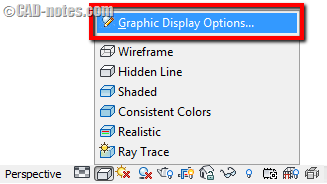
graphic_display_options_menu

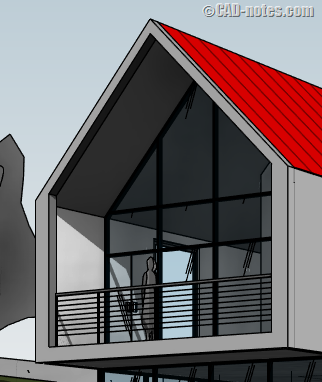
In the dialog box, you will see additional option: sketchy lines. This option will make your model looks like a hand drawn drawing. It works with 2D and 3D view.

After you activate “enable sketchy lines” you need to change the jitter and extension values to see the effect.
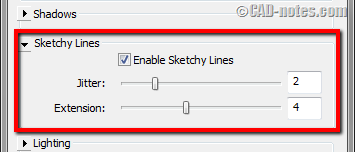
sketchy_lines_and_anti_aliasing_option

The anti aliasing option

Revit is not the only one who have anti-aliasing option. AutoCAD 2015 also has this option. Anti aliasing will show your lines smoother in your display.
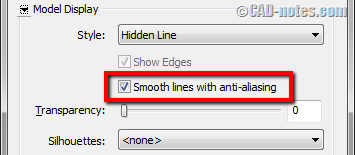
sketchy_lines_and_anti_aliasing_option

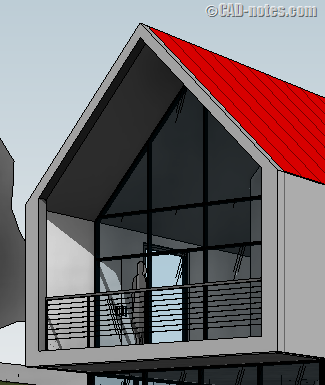
Below is the comparison of the camera view with and without the anti-aliasing.

without_anti_aliasing

with_anti_aliasing

Without anti aliasing

With anti aliasing

Anti aliasing is turned off by default. You can turn it on for each view if you need it.

If you want to turn it on by default for all views, you can turn it on in Revit Options. In Graphics option, Graphic Mode category, activate “Use for all views”.
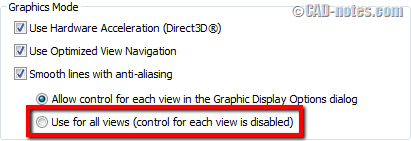
use_anti_aliasing_for_all_views

Try to combine the Display Options!

You might want to try to combine the Graphic Display options to get great result.

Try to change background and ambient shadows option. Sketchy lines with anti aliasing also give totally different result.
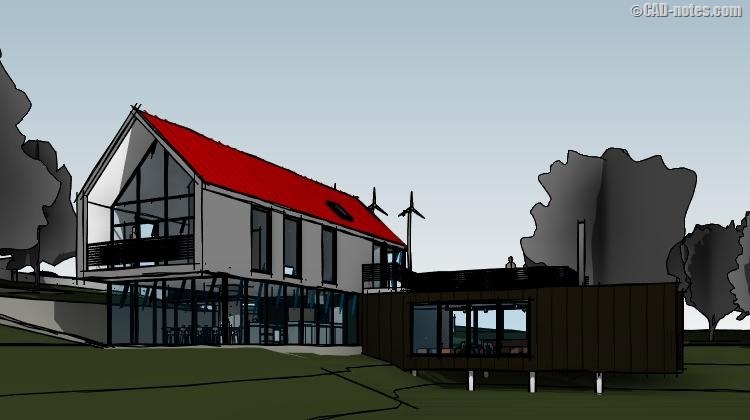
Revit sketch visual styles

What do you think about this new feature? Do you like it?

Share the knowledge:

About Edwin Prakoso

I work as a Sr. Consultant in PT Cipta Satria Informatika. I've been using AutoCAD since R14 and Revit since Revit Building 9. I occasionally write for AUGIWorld magazine and I am also active in Autodesk discussion forum. I'm a member of Autodesk Expert Elite, an appreciation for individuals who give contributions to the Autodesk community.
Connect with me on twitter or LinkedIn.

Filed Under: Archive Tagged With: Revit 2015

0 0 votes
Article Rating
Subscribe
Login
Notify of
guest

guest

This site uses Akismet to reduce spam. Learn how your comment data is processed.

0 Comments

Featured

Engineers in planning meeting

Work Better with AutoCAD | challenge 6: Plan your drawing!

In this Work Better with AutoCAD challenge, Paul Munford shares how to plan your drawing. With good planning, you can complete the drawing effectively!

Recent Articles

  • Automation is not AI
  • BIM Doesn’t Fix Your Problems
  • BIM is Useful, Until It’s Not

Advertisement

New on CADnotes

  • Automation is not AI
  • BIM Doesn’t Fix Your Problems
  • BIM is Useful, Until It’s Not
  • AI-Powered Rendering Now Available in Forma Board
  • Autodesk Forma Is Not The New Name For ACC

Meet the Authors

avatar for
avatar for
avatar for
avatar for
avatar for
avatar for

Get Connected

CADnotes on FacebookCADnotes on InstagramCADnotes on TwitterCADnotes on YouTube

© 2009 – 2026 CADnotes · Feedback · Privacy Policy · Become an affiliate

In this Article...

×
  • The hand sketched drawing
  • The anti aliasing option
  • Try to combine the Display Options!
→ In this article...
wpDiscuz