When we work with our drawing, we often need to rotate our objects, mirror them, and make necessary adjustment.
If you have many texts in your drawing, either they are texts, mtexts or block attributes… you may see them rotated to different angles. They can be very hard to read!
When I was in college, my lecturer taught me that we must be able to read annotations from bottom of the paper, or from the right side of the paper. The bottom of the paper is defined by the title block orientation, of course.
To fix our drawing to follow that rules, there is a tool to quickly fix this: Rotate text/TORIENT.
Accessing Rotate text tool
This is an express tool, so if you must have express tools installed. If you use AutoCAD LT, unfortunately this tool is not available for you.
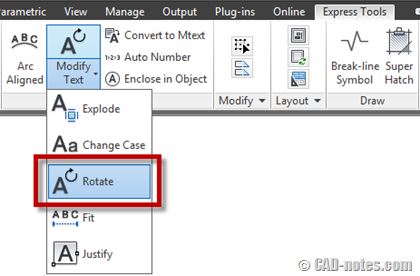
You can access this tool on express tool tab> text panel. Click the small arrow below modify text. Click rotate button.
If you love command line, simple type TORIENT then press [enter].
How rotate text works
The procedure is described on help file. However, let’s see how it works.
After you activate the tool, you can select all texts you want to rotate. Press enter after you finish with the selection.
Now you have most readable as default option. Just press [enter] if you want this option.
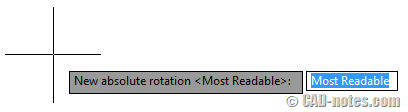
Or if you want to define text orientation angle, you can type the angle then press [enter]. Of course, you can click points to define the angle too.
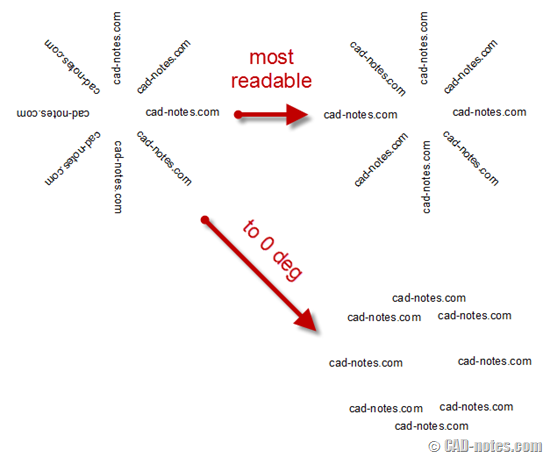
See this image. The left image is how the original texts looks like. If you choose most readable, then the orientation will be like on the right top. It maintain the original angle, but oriented so you can read the texts from bottom or right side of the paper.
If you type 0. Then the result is like on the right bottom. Pretty useful, right?
See how it works on YouTube!
Thank you to R.K. McSwain who brought the tip at this aligning text tip. And thank you to Mary Kachler who mentioned about this on LinkedIn group!


thank you