• Home
  • Training Books
  • Subscribe to Our Email Newsletter
  • About
    • Contributors
    • Feedback
    • Contact
    • Privacy policy
    • Cookie Policy

CADnotes

CAD Tutorials and Best Practices for professionals and students

  • Featured
  • AutoCAD
    • AutoLISP
  • Revit
    • Revit Architecture Basic
    • Revit MEP Basic Tutorial
  • Inventor
  • MicroStation
    • MicroStation Basic Tutorial
You are here: Home / AutoCAD / Enable block attribute dialog during insertion

Enable block attribute dialog during insertion

June 8, 2011 by Edwin Prakoso 1 Comment

We often use AutoCAD block with attributes to preserve text. We use it for drawing title, section symbol, title block, etc. See this title block as example. This is my default title block in my AutoCAD drawings.

My CAD Site has a good tutorial if you want to create your own title block here.
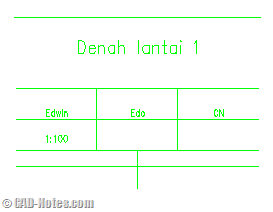
title block

The problem is, when I insert that block, AutoCAD will sequentially ask me to give the attribute value.

Command: I
INSERT
Specify insertion point or [Basepoint/Scale/Rotate]:
Enter attribute values
JUDUL 1 :: Denah lantai 1
JUDUL 2 ::
Digambar :: Edwin
Diperiksa :: Edo
Disetujui :: CN
SKALA :: 1:100
TANGGAL ::
KODE ::
NAMA FILE ::
NO. LEMBAR ::

I prefer to have a dialog box than having them asked in command line. I can skip some attributes, and makes more sense.

If you feel the same, you can do it by changing the ATTDIA system variable to 1.

After you change the system variable, now we will have this instead of series of questions in command line:
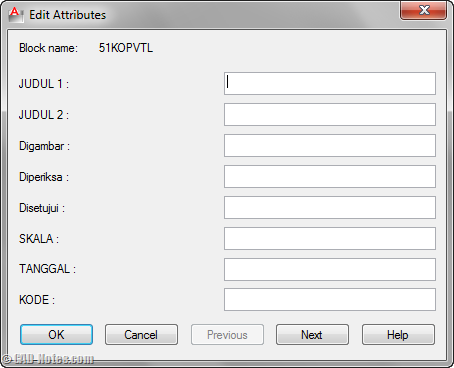
insert block attributes with dialog

More convenient and makes sense than typing in command line, isn’t it?

Do you use attributes to preserve style and location for your annotations? What kind of annotations are they, and do they have many attributes like this one I have here?

Share the knowledge:

About Edwin Prakoso

I work as a Sr. Consultant in PT Cipta Satria Informatika. I've been using AutoCAD since R14 and Revit since Revit Building 9. I occasionally write for AUGIWorld magazine and I am also active in Autodesk discussion forum. I'm a member of Autodesk Expert Elite, an appreciation for individuals who give contributions to the Autodesk community.
Connect with me on twitter or LinkedIn.

Filed Under: AutoCAD Tagged With: ATTDIA, block attributes

0 0 votes
Article Rating
Subscribe
Login
Notify of
guest

guest

This site uses Akismet to reduce spam. Learn how your comment data is processed.

1 Comment
Peter
Peter
13 years ago

Thanks that was most helpful but for the another reason. I wanted to go back to working the other way so by setting attdia to "0" that fixed it. I could not remember that particular command (there are a ton in Acad) so you reminded me. Perfect

0
Reply
wpdiscuz   wpDiscuz

Featured

6 Things AutoCAD Command Line Can Do for You (Infographics)

AutoCAD Command Line is the most important feature in AutoCAD. Veteran users can use two hands (one on the keyboard and the other using mouse) and draw very quickly. It is faster than relying on the GUI only.

The new users probably using GUI more than older users like me. They prefer the Ribbon and use the Command Line less. 

In this post, you can see 6 things AutoCAD Command Line can do to make your life easier. You don’t have to use them all, but at least you know it can be done. If you think it’s good, use it. But if you don’t like it, leave it.

Recent Articles

  • Automation is not AI
  • BIM Doesn’t Fix Your Problems
  • BIM is Useful, Until It’s Not

Advertisement

New on CADnotes

  • Automation is not AI
  • BIM Doesn’t Fix Your Problems
  • BIM is Useful, Until It’s Not
  • AI-Powered Rendering Now Available in Forma Board
  • Autodesk Forma Is Not The New Name For ACC

Meet the Authors

avatar for
avatar for
avatar for
avatar for
avatar for
avatar for

Get Connected

CADnotes on FacebookCADnotes on InstagramCADnotes on TwitterCADnotes on YouTube

© 2009 – 2026 CADnotes · Feedback · Privacy Policy · Become an affiliate

wpDiscuz