Do you like using AutoCAD dynamic block? If you use stretch action, some element may not be on expected place. For example, block attributes will not stay at center.
In this AutoCAD tip, we created some drawing elements and add an attribute at the block center. We want to change the block size by stretching it. The challenge is to keep the attribute at the block center. There are two ways we can do to achieve it:
- Keep the it at it’s position and stretch the block both ways
- Stretch the block to one direction and at the same time move the attribute to keep it at the center.
Let’s try this. I use a simple dynamic block for this tip: a room number tag.
Creating the attribute
Creating it is just the same, we use ATTDEF. To make this easier, set the justification to center.
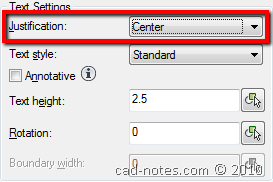
One more thing: make sure lock position is active. Some action will not work if you set the position to not lock.
First alternative: stretch to both directions
This should be easy. It’s similar to what I described in this dynamic block tutorial, creating column. We set the base location to Midpoint, and add two stretch actions.
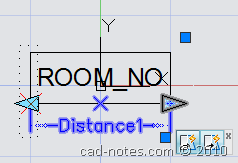
Second alternative: Stretch and move actions
If you create a more complex dynamic block, you probably don’t want to stretch it to both direction. For example, you want to create a table that also has array action. When you stretch it, not only the table size change, but also add more chairs. The table sample is available in CAD Notes e-book: AutoCAD Block Best Practices.
In this situation, it will be easier to stretch the block to one direction. To keep the attribute at the center, we add one more action to move it when after stretching the block.
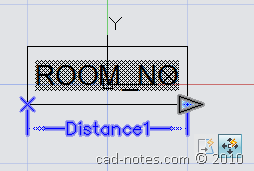
Remember: the attribute have to move half of the stretch action distance. If we stretch the distance 100 units, then we should move it 50 units. To achieve this, select the move action icon. Open properties palette and change the distance multiplier to 0.5.

Try it and have some fun! See video below to see how to do it.


It’s been 10 years, I don’t know if you’re still there, but I LOVE you. I spent an hour trying to figure this out. Thanks!
very thanks. its very useful for me. thanks from Istanbul.
Hi,
I’m trying to create a dynamic block of a radiator (with it’s length scaleable) with attributes which I can put into a table using dataextraction.
I can create both independently and they both work.
Once I create the attributes in the dynamic block, the dynamism is lost (in other words, it becomes a standard block).
Do you have any idea why this might happen and how it can be overcome?
Regards,
Darren
Hi Darren,
Can you email me the block and describe what you expect the block will do? You can email it to edwin.prakoso@cad-notes.com
Mr. Prakoso , do you happen to know if there's anyway that allows me to resize "enclose text object" as I edit the text.
Quite useful though, I was looking on how to lock the pick point at middle position no matter how long you stretch the block, any ideas?
Have you tried to using parametric feature? It will work better instead of dynamic block parameter in your situation.
thanks man, never crossed in my mind that parametric feature could act as if it's a dynamic block with actions parameter and all.