• Home
  • Training Books
  • Subscribe to Our Email Newsletter
  • About
    • Contributors
    • Feedback
    • Contact
    • Privacy policy
    • Cookie Policy

CADnotes

CAD Tutorials and Best Practices for professionals and students

  • Featured
  • AutoCAD
    • AutoLISP
  • Revit
    • Revit Architecture Basic
    • Revit MEP Basic Tutorial
  • Inventor
  • MicroStation
    • MicroStation Basic Tutorial
You are here: Home / AutoCAD / Drawing purge: powerful utility to purge unused objects

Drawing purge: powerful utility to purge unused objects

December 18, 2013 by Edwin Prakoso 6 Comments

We published an article about things that you can do to make your DWG files smaller.

zipped-files.jpg

There are many great additional tips from our readers. But there is one thing that really gets my attention, so I decided to post about it separately.

Massimo Corradi mention about Drawing Purge, free utility available on Autodesk Exchange Apps store.

drawing_purge

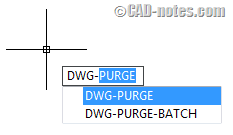
This utility is great. It will remove unused linetypes, regapps and annotation scales.

It also has batch purge utility: you can process multiple drawings at once.
dwg_purge

If you often have DWG files that unusually large, this plugin will really help.

Go download the plugin here: Drawing Purge.

Do you have other plugins to share?

If you have visited Autodesk Exchange Apps store, what is your favorite plugin? Will you share it with us here?

Share the knowledge:

About Edwin Prakoso

I work as a Sr. Consultant in PT Cipta Satria Informatika. I've been using AutoCAD since R14 and Revit since Revit Building 9. I occasionally write for AUGIWorld magazine and I am also active in Autodesk discussion forum. I'm a member of Autodesk Expert Elite, an appreciation for individuals who give contributions to the Autodesk community.
Connect with me on twitter or LinkedIn.

Filed Under: AutoCAD Tagged With: plugins, purge

0 0 votes
Article Rating
Subscribe
Login
Notify of
guest

guest

This site uses Akismet to reduce spam. Learn how your comment data is processed.

6 Comments
Anand
Anand
10 years ago

Is there any commands to copy 2 different texts to clipboard. I want to copy ” TEXT1″ & TEXT2″ & I want paste any one without copying again; while pasting any options in clipboard.

0
Reply
Anand
Anand
10 years ago

Is there any commands to change the layer of the objects which are in blocks.

0
Reply
Edwin Prakoso
Edwin Prakoso
Author
Reply to  Anand
10 years ago

It’s not possible with native AutoCAD command. You need to develop a LISP program to do it.

0
Reply
Anand
Anand
10 years ago

Is there any commands to change the layer of the objects which are in blocks, means I want to change the layer of objects which are in many blocks.

0
Reply
Marcantonio
Marcantonio
10 years ago

Is it more powerful than the PURGE and -PURGE commands?

0
Reply
Edwin Prakoso
Edwin Prakoso
Author
Reply to  Marcantonio
10 years ago

Well, you don’t have to open the file to purge objects. It allows you to do batch process for several files at once. And It’s much faster.
But it does the same thing with PURGE and -PURGE command.

0
Reply
wpdiscuz   wpDiscuz

Featured

30 Tips and Tricks to Work Better with Revit

Revit is pretty straightforward to use. But it doesn’t mean that we can’t find something new to increase our productivity. Either you are new to Revit, or already use it for years, there are always new things we can learn!

Recent Articles

  • BIM Doesn’t Fix Your Problems
  • BIM is Useful, Until It’s Not
  • AI-Powered Rendering Now Available in Forma Board

Advertisement

New on CADnotes

  • BIM Doesn’t Fix Your Problems
  • BIM is Useful, Until It’s Not
  • AI-Powered Rendering Now Available in Forma Board
  • Autodesk Forma Is Not The New Name For ACC
  • Placing Views on Sheet Efficiently with Saved Position

Meet the Authors

avatar for
avatar for
avatar for
avatar for
avatar for
avatar for

Get Connected

CADnotes on FacebookCADnotes on InstagramCADnotes on TwitterCADnotes on YouTube

© 2009 – 2026 CADnotes · Feedback · Privacy Policy · Become an affiliate

wpDiscuz