In this Article...
If you remember the 10 days to work better with AutoCAD series, you might remember that I mentioned that if you are drawing in metric then use metric template. And if you read my article in AUGI World February issue, I mention about it again as the first rule (you can also download the pdf version here).
So what’s so wrong if I use imperial template for my metric drawing? Nothing is wrong. You will just have more things to do. If you are a veteran AutoCAD user or if you already find the workaround, this will not be a big issue to you. But if you are a beginner, you will want everything to work out of the box. You will not want to use too many commands or change too many variables/properties in your first days of work.
Let’s see how things can be easier if you use proper template for your drawings.
Let’s compare them both!
Create two new drawings
Let’s try to create two drawings in AutoCAD. Create it by clicking the big A button, new> drawing.
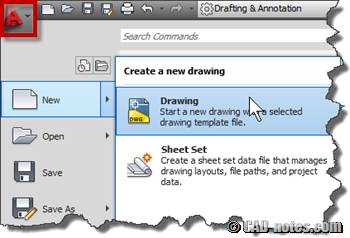
AutoCAD will let you choose which template you want to use. For the first file, choose acad.dwt. This is the default template used by AutoCAD out of the box. If you start AutoCAD, then the new drawing you see use this file by default.
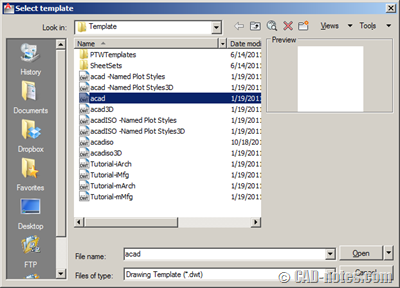
If you want to easily distinguish it, you can save it as ‘imperial.dwg’. Create another drawing using acadiso.dwt. Save it as ‘metric.dwg’. Tile both drawing.
Linetype
Load dashdot linetype for both drawings and make it as default.
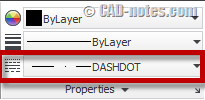
Let’s start with imperial template. Draw a 1000×1000 rectangle. When we are working in metric, it means this is 1000x1000mm rectangle. Draw the same sized rectangle in the second drawing.
You can see in drawing created with metric template, the rectangle fits in the drawing. In imperial, you still can see the linetype but the rectangle is way too large. It’s still not a problem.
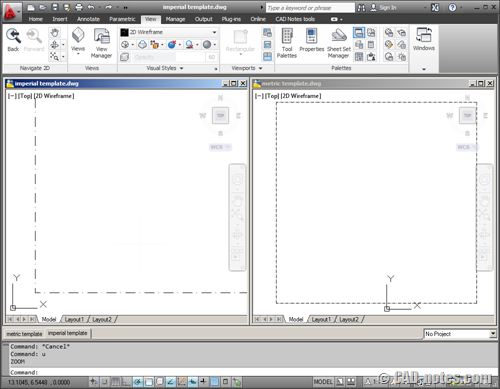
Now zoom extents both drawing, so you can see the rectangle fit in both drawings. What do you see? The one created with imperial now looks continuous, no longer dash dot! Of course you know how to make it appears. By changing linetype scale. To what value?
Hatches
Now let’s try with hatch. I tried with AR-CONC pattern here. Do not change the hatch scale.
You can see the metric display it just right, but too dense in imperial. Again, it’s easy to make it appears correctly. Just change the hatch scale.
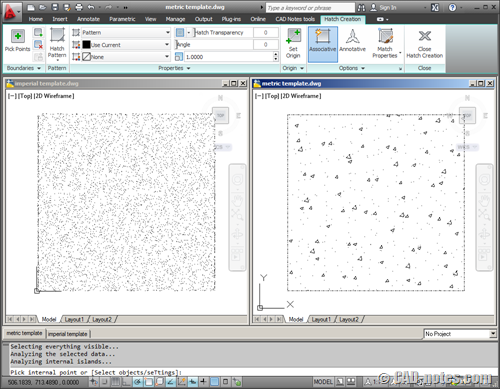
It does look very simple. Veteran users might not be disturbed by this, because they know the workaround and already comfortable with this. But beginners will need to do some trials and errors before the get the value they want.
There are more on the list!
We can continue to explore more settings affected by this choice. Not limited to 2D drawings, but also to 3D model. I tried to extrude both rectangle we made and assign same material to both of them. You need extra work if you use wrong template!
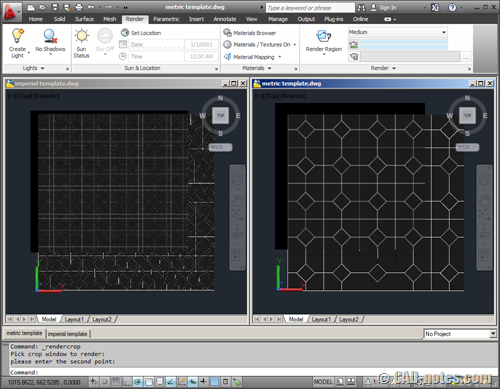
It affects many area. Many of scale related problems. From insert block, XREF, styles, and we can continue this list if you want to… but I believe you get the idea now.
While there’s nothing wrong about it, you can avoid additional works to finish your job.
If you are using metric for your drawing, don’t you think it’s worth to use the proper template? Do you have any experience in the past about using the wrong template? Share with us here!


Copying layout is also affected by this whenever you tried to copy a layout from emperial to metrics or otherwise the viewports will scale up or scale down.
Copying layout is also affected by this whenever you tried to copy a layout from emperial to metrics or otherwise the viewports will scale up or scale down.
Additionally, if you use the wrong template your scales lists might display wrong (i.e. 1:1 instead of 1'-0"=1'-0"). Use the SCALELISTEDIT command and hit the Reset button on the right side of the dialogue box. You can then choose which type of scale you want to have displayed – metric, imperial, or both.
Regardless of the template you start with, if you set the variable MEASUREMENT to 0 the hatches and linetypes will load to the the Imperial scaling. If you set MEASUREMENT to 1 they will load to the Metric scaling.
If you have already loaded linetypes before adjusting the MEASUREMENT variable then you will have to re-load those linetypes for them to display properly. It's even more complicated if a drawing with the wrong MEASUREMENT variable is x-ref'd into another drawing.
As you say Edwin, it's best to start with the correct template.
Thanks for the additional info. I wasn't aware about this system variable before.
Edwin it is good to see the:
what’s so wrong if I use imperial template for my metric drawing?