• Home
  • Training Books
  • Subscribe to Our Email Newsletter
  • About
    • Contributors
    • Feedback
    • Contact
    • Privacy policy
    • Cookie Policy

CADnotes

CAD Tutorials and Best Practices for professionals and students

  • Featured
  • AutoCAD
    • AutoLISP
  • Revit
    • Revit Architecture Basic
    • Revit MEP Basic Tutorial
  • Inventor
  • MicroStation
    • MicroStation Basic Tutorial
You are here: Home / AutoCAD / Insert AutoCAD block without being asked to input value

Insert AutoCAD block without being asked to input value

June 1, 2011 by Edwin Prakoso 2 Comments

In this Article...

Toggle
  • Preset Mode
    • Working with multiple attributes

When we insert a block with attributes, AutoCAD will ask you to give new value.
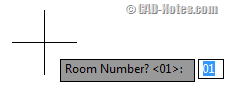
attribute question

Do you ever wish that you can insert your block without AutoCAD asking you the question? You probably wonder… why do we want that?

Let’s see our coordinate labeling tutorial here. We created the block definition using field, so the value will be updated automatically. When we move it, or insert in new location.

By having AutoCAD asking the user, The field can be accidentally removed.

Try to insert it and type a text when AutoCAD ask you the question. The coordinate label doesn’t work anymore.
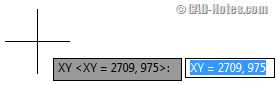
attribute value

So we want to insert it quietly.

How can we do it? Very easy.

Preset Mode

When you create a new attribute, make sure you check the preset mode. By activating this option, AutoCAD will not ask you the value when you insert your block.
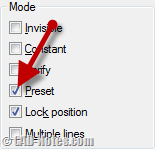
preset attributes

If you already have the block definition, you can easily modify it using block attribute manager (BATTMAN).

Working with multiple attributes

Now what if in the definition has several attributes? Let’s say we have two attributes: point number and point coordinate.

  1. We don’t want AutoCAD to ask the coordinate value.
  2. But we do want being asked the point number every time we insert it.

No problem. You can activate preset for coordinate attribute, but deactivate it for point number. When you insert the block, it will only ask point number, but not the coordinate.

This option is very useful when you use field in attributes. So you can prevent anyone to accidentally change it.

You can also consider to use this option for values that are common in your drawing. You can insert the block faster. And when you need to change the value, you can edit it after insertion.

Do you use preset attributes? If you do, what are you using it for?

Share the knowledge:

About Edwin Prakoso

I work as a Sr. Consultant in PT Cipta Satria Informatika. I've been using AutoCAD since R14 and Revit since Revit Building 9. I occasionally write for AUGIWorld magazine and I am also active in Autodesk discussion forum. I'm a member of Autodesk Expert Elite, an appreciation for individuals who give contributions to the Autodesk community.
Connect with me on twitter or LinkedIn.

Filed Under: AutoCAD Tagged With: attributes, AutoCAD block

5 1 vote
Article Rating
Subscribe
Login
Notify of
guest

guest

This site uses Akismet to reduce spam. Learn how your comment data is processed.

2 Comments
Miguel F. Sep&uacute
13 years ago

use variable:
attreq = 0 Not input
attreq = 1

3
Reply
Ahmad Jalal alhosseini
Reply to  Miguel F. Sep&uacute
6 years ago

Thank you

0
Reply
wpdiscuz   wpDiscuz

Featured

One AutoCAD, Seven Specialized Toolsets

AutoCAD 2019 has been released, with a big change. This is the special announcement Autodesk has been teasing you in the last few days. It’s not only AutoCAD 2019. You also get 7 specialized toolsets!

Recent Articles

  • Automation is not AI
  • BIM Doesn’t Fix Your Problems
  • BIM is Useful, Until It’s Not

Advertisement

New on CADnotes

  • Automation is not AI
  • BIM Doesn’t Fix Your Problems
  • BIM is Useful, Until It’s Not
  • AI-Powered Rendering Now Available in Forma Board
  • Autodesk Forma Is Not The New Name For ACC

Meet the Authors

avatar for
avatar for
avatar for
avatar for
avatar for
avatar for

Get Connected

CADnotes on FacebookCADnotes on InstagramCADnotes on TwitterCADnotes on YouTube

© 2009 – 2026 CADnotes · Feedback · Privacy Policy · Become an affiliate

In this Article...

×
  • Preset Mode
    • Working with multiple attributes
→ In this article...
wpDiscuz