• Home
  • Training Books
  • Subscribe to Our Email Newsletter
  • About
    • Contributors
    • Feedback
    • Contact
    • Privacy policy
    • Cookie Policy
  • Bahasa Indonesia

CADnotes

CAD Tutorials and Best Practices for professionals and students

  • Featured
  • AutoCAD
    • AutoLISP
  • Revit
    • Revit Architecture Basic
    • Revit MEP Basic Tutorial
  • Inventor
  • MicroStation
    • MicroStation Basic Tutorial
You are here: Home / Revit / Restore the Revit UI Layout with the XML file

Restore the Revit UI Layout with the XML file

January 27, 2021 by Edwin Prakoso Leave a Comment

In this Article...

Toggle
  • The RevitUILayout.xml File
  • What’s in the RevitUILayout.xml file?
  • To Sum Up

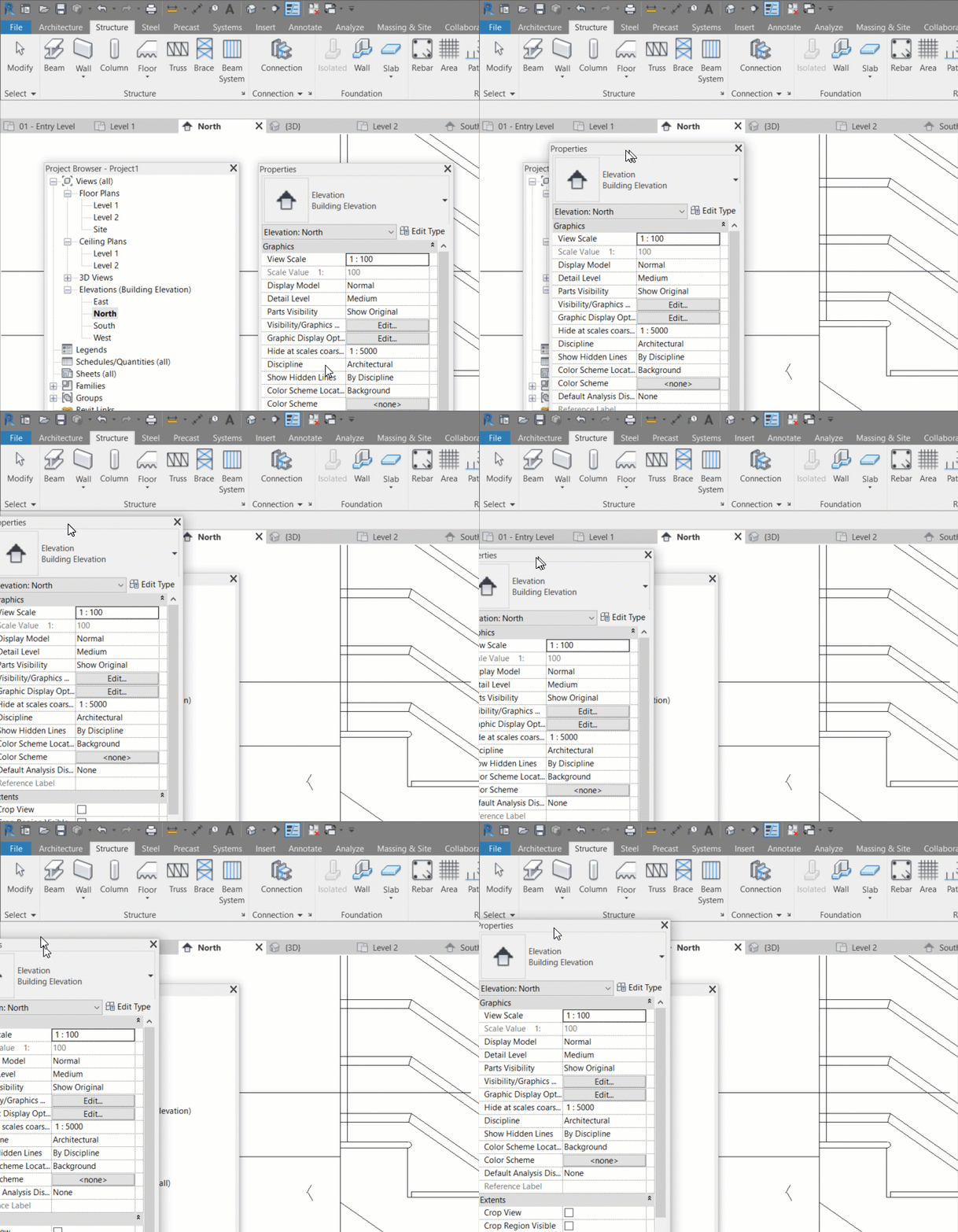
I usually use an additional monitor when using Revit. When I do, I usually move a lot of Revit interface elements to another screen. Including the Properties Palette and the Project Browser.

But when I work outside, I only can use 1 monitor. I need to rearrange my layout to work conveniently. Trust me; it’s not easy to dock the palettes as we want.
The RevitUILayout.xml File

We know that Revit keeps the settings and preferences in the Revit.ini file. But the layout is saved in a different file: RevitUILayout.xml. The file location is the same as the Revit.ini file.

You can find it here:

%appdata%\Autodesk\Revit\Autodesk Revit 2021

Or the full path is

C:\Users\USERNAME\AppData\Roaming\Autodesk\Revit\Autodesk Revit 2021

Don’t forget to change the USERNAME and Revit version to match yours.

Save a copy of this file to restore the layout to the current state. You can replace the file with your backup later.

What’s in the RevitUILayout.xml file?

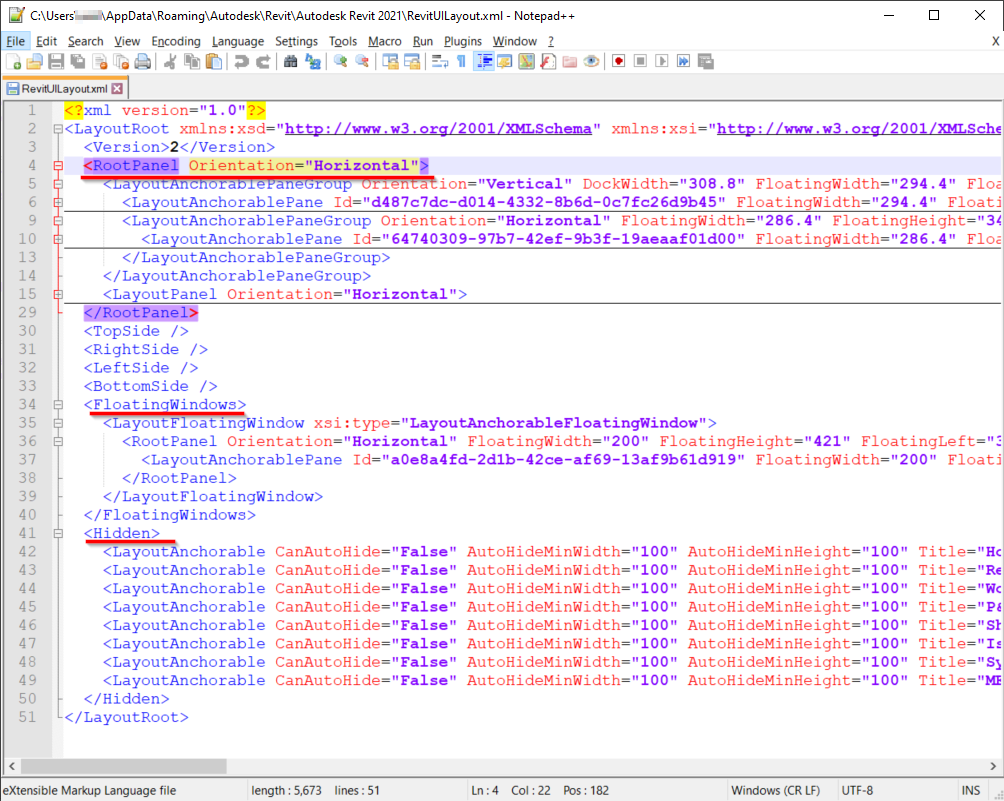
It’s an XML code. If you don’t know about XML, I suggest you leave it. Just save the file as a backup.

Basically, there are 3 groups of settings. The docked windows, floating windows, and the hidden windows. You can see there are several hidden palettes with this setting.

Revit will update this file after you make a change in the Revit UI and close Revit. The next time you open Revit, it will use the last setting in this file.
To Sum Up

Revit uses a different file to save the UI layout. If you get convenient with your current UI you better keep a backup so you can restore it later.

Saving different settings for Revit UI also useful when you need to work with a different setup. For example, using two or one monitors.

Share the knowledge:

About Edwin Prakoso

I work as a Sr. Consultant in PT Cipta Satria Informatika. I've been using AutoCAD since R14 and Revit since Revit Building 9. I occasionally write for AUGIWorld magazine and I am also active in Autodesk discussion forum. I'm a member of Autodesk Expert Elite, an appreciation for individuals who give contributions to the Autodesk community.
Connect with me on twitter or LinkedIn.

Filed Under: Revit

0 0 votes
Article Rating
Subscribe
Login
Notify of
guest

guest

This site uses Akismet to reduce spam. Learn how your comment data is processed.

0 Comments

Featured

AutoCAD Essentials: 27 CADnotes Best Tutorials and Tips

This compilation list 27 tutorials, tips and trick that CADnotes published in the last 8 years. A great place to start if you want to learn advanced features or learn new cool tricks! And it’s free!

Recent Articles

  • Automation is not AI
  • BIM Doesn’t Fix Your Problems
  • BIM is Useful, Until It’s Not

Advertisement

New on CADnotes

  • Automation is not AI
  • BIM Doesn’t Fix Your Problems
  • BIM is Useful, Until It’s Not
  • AI-Powered Rendering Now Available in Forma Board
  • Autodesk Forma Is Not The New Name For ACC

Meet the Authors

avatar for
avatar for
avatar for
avatar for
avatar for
avatar for

Get Connected

CADnotes on FacebookCADnotes on InstagramCADnotes on TwitterCADnotes on YouTube

© 2009 – 2026 CADnotes · Feedback · Privacy Policy · Become an affiliate

In this Article...

×
  • The RevitUILayout.xml File
  • What’s in the RevitUILayout.xml file?
  • To Sum Up
→ In this article...
wpDiscuz