I don’t remember when exactly Autodesk introduce layer properties manager as a palette. It does have benefits because we can create layers or change properties on the fly. We don’t have to close it to continue working like using old dialog box.
However, I’ve seen some users have problems with it. I assume this has something to do with graphic cards. They are probably not certified.
I also see that if they use old dialog box, then it works as usual. So this is a workaround if you have similar problem. I also see several users prefer using dialog box than palette for other reasons.
How can we use old layer properties manager dialog box?
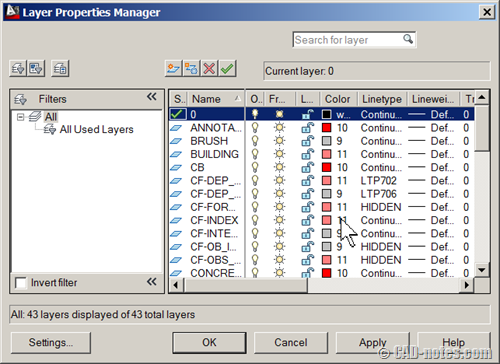
There are two ways to use layer manager dialog box:
- Using CLASSICLAYER command.
- Change LAYERDLGMODE variable to 0.
Using CLASSICLAYER
This command will open dialog box, not palette. But if you use _LAYER command or click the button from ribbon/toolbar, it will still open layer palette.
Changing LAYERDLGMODE
If you change the LAYERDLGMODE to 0, then AutoCAD will open dialog box, doesn’t matter how you access the layer manager.
So if you have problem with palette, or you just like the old way… you know how to use dialog box!


You are awesome! Your site has helped me numerous times. I truly, deeply appreciate the time you put into the site.