AutoCAD viewports are extremely helpful. You can view many area of your drawings in model space, and you can arrange your drawings quickly in layout. Here are some tips that you may have overlooked.
Tip #1: Using Viewport Configurations
Do you need to create multiple viewports at once? You can do it by creating it one-by-one, or create one then copy or array it. But do you know that you can use predefined configurations?
Go to view tab, click new.
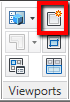
You will see the same good friend that you can use to configure viewports in model space. Yes, you can use it in layout too. One option that is useful here is viewport spacing. This will create the viewports with some spacing between them. You can also use named viewports to do this. Unfortunately, named viewports don’t allow you to set spacing.
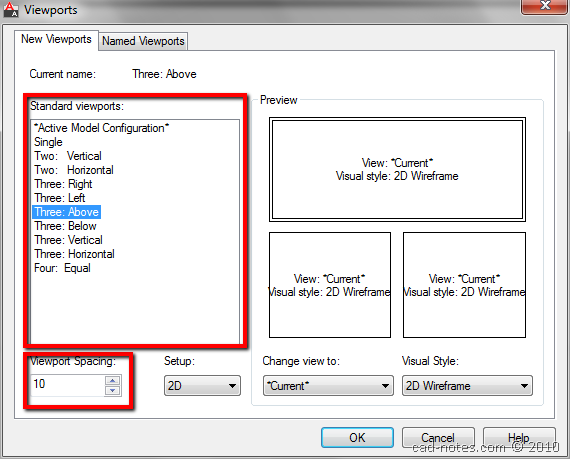
Click OK and place them.
Tip #2: Creating Irregular Viewports
Do you need to create irregular viewports? I mean not only rectangular, but maybe circles, polygons, etc? You can do it using create polygonal or create from object.
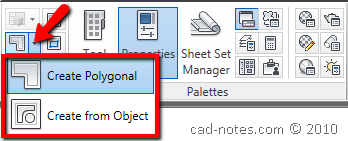
Using create polygonal is just the same with using polyline tool, but you have to create a closed polygon. Create from object can be used for closed objects like circles, polygons, and even ellipse!
Tip #3: Clip Viewport
Now, what if you already have viewport and want to convert it to other shape? You can use clip.
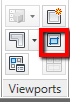
After activating this tool, choose the viewport then choose the polygon.
I don’t think there is a restriction about this tool. The new boundary can be anywhere, doesn’t have to be inside or intersect existing viewport.
Tip #4: Scaling Viewport by Choosing from Scale List
I remember when I had to use zoom scale, then typing nX or nXP. I wish this feature exist at that time! You can select viewport(s) and then change the scale using standard scale in your scale list. You can choose it from viewports toolbar (which I prefer)

Or you can use viewports scale on status bar. It’s at the bottom left of your screen.

Additional Tips:
- If you use ribbon interface, you can load viewports toolbar by typing –TOOLBAR then VIEWPORTS
- You can add or remove standard scale with SCALELISTEDIT
Animation
Want to see the tips in action?


Sir, I want a long size autocad drawing in many more A4 size paper to cut and fix automatic as per size of paper. so please tell me how it possible. a long drawing just a road alignment topographic image cut a4 size sheet.
saya mau tanya Pak, semisal dalam 1 model yang terdiri dari 2 buah layer, yakni layer 1 berupa jalan-jalan dan layer 2 berupa rumah-rumah untuk peta sebuah desa . kemudian saya ingin menggunakan aplikasi viewport ini dalam 1 layout peta yang terdiri dari 3 blok gambar, gambar blok yang pertama terdiri dari jalan-jalan dan rumah-rumah, gambar blok yang kedua hanya berupa jalan-jalannya saja dan blok yang ketiga hanya terdiri dari rumah-rumahnya saja. kira-kira bisa gak Pak kemungkinan gambar di layout tersebut? mohon pengarahannya, terima kasih.
salam
-rudi-