June 19, 2013

Introduction to Annotation Scale

Annotation scaling was introduced first time on AutoCAD 2008. I love this feature. This feature add benefits to AutoCAD layout. There are some work around AutoCAD users do before this feature exist. But now, presenting our drawing in different scales is very easy and quick. If you are interested to learn this feature, this tutorial will be a nice reading to start.

First, what are annotations?


Annotations are every object in your drawing which is not a model or geometry. We use it to show dimensions, text as description, symbols, and pattern to show sections, materials, etc.

The problem with annotation occurs when you need to represent your drawing in different scales.
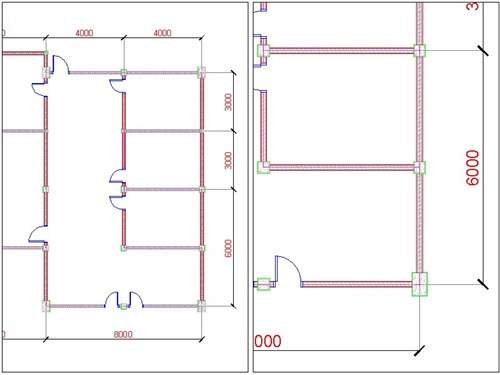
annotations

Two images above are the same model in different viewport, with different scales. If we draw the model and prepare it to a certain scale, say 1:100, when we need to represent the drawing in 1:200, the text, hatches, and all other annotations will be shown in half size to what we expected.

AutoCAD users used to create annotations in layout. But there are some downside.

  1. It works for text and dimension, but not for hatches.
  2. You may need to create more than one annotation to the same object, if you show them in different viewports. When you need to change the text content, you will have to change them all manually. Sometimes you left some of them unchanged.
  3. When you move the viewport, some annotations might be left behind.

So, if you have those problems, you may love this feature.

Download and open this drawing. We are going to continue using the same drawing. Change your active scale from annotation scale list. It’s on your status bar. Change it to 1:100. We are going to set our drawing for 1:100 first.

scale list

Now open your dimension style. You should see a style named ’1-100 3mm’. Right click on it, and rename it to ’3 mm’. Click modify button on the right side of this dialog box.

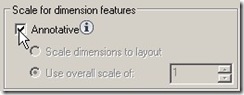
On the FIT tab, scale for dimension features section, activate annotative.

dimension features

  1. On the Text tab, change text height to 3, offset from dimline to 1.
  2. On Symbols and Arrows tab, change arrow size, center marks, and break size to 2.5.

Close the dimension style dialog box.

You see all your dimension text and arrow too small? Don’t worry. We need to update them to apply the changes.
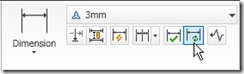
dimupdate

Activate update in dimension panel, annotation tab. When AutoCAD ask you to select object, just type ALL then [enter]. Now you should see your dimension correctly.

Now we are going to add another scale to these dimensions. Activate ‘automatically add scales …bla..bla..bla…’ in annotation scale group.
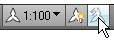
automatically add scales

Change the annotation scale to 1:200. You should see the dimension size adjusted for 1:200 scale! Turn off the ‘automatically add scales…’ again. Try to change it to 1:50. What happen? Nothing.

Open your layout. Select the left viewport border, and change the scale to 1:100. Press [esc] to deselect the viewport. Select the right viewport, and change the scale to 1:200.
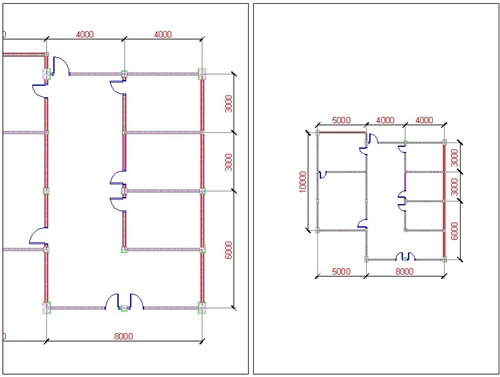
annotation scaled

Compare the dimension size on those two viewport. Even the viewports have different scales, the dimension size will always be the same! When you plot this sheet, the text in all viewports will be 3mm.

We will discuss more about annotation scale in the next post.

Advertisement


You might also interested to

About Edwin Prakoso

Edwin works as an Application Engineer in Jakarta, Indonesia. He has 4 years experience in building industry, then start to work for Autodesk reseller.
He is certified as Revit Architecture 2010 certified professional and AutoCAD 2013 certified professional.
He loves sharing his experience and starts to blog on CAD notes. Now using CAD is more to a lifestyle for him than working.
You can reach him on twitter @CADnotes. You can also connect with him on LinkedIn. If you prefer email, reach him at edwin.prakoso@cad-notes.com.

  • Pau

    Thankyou for this tutorial! Very informative and helped me a lot with my thesis :)

  • Mahendra

    Dear Edwin,
    Hello.. I am writing this mail in utter distress and confusion. I really hope you would be able to resolve my problem.
    It’s to do with the Annotation scale. I have gone through your tutorial on Cad Notes and I have followed it and I have been able to assign annotation scale to the text. I thought that would be the end of the issue but unfortunately that was the start of all my problems.
    What I had thought after reading various articles about this topic on net was that, by applying the annotation scale to the text dimensions etc, when I wanted the drawing to be plotted at various scales that text would automatically adjust to the scale in while I would be plotting.
    For example I have a site plan which I need to plot at 1:1000 and 1:400. I have given the annotation scale to the mleader text in the model space. The text height is 2.5mm. And then assign the viewports to the said scales. Now when I look at the dwg in 1:400 I can see the text at perfect height i.e.: 2.5mm and when I look at the site plan at 1:1000 the height of the text remains the same but it covers my drawing. I mean the text becomes too large for the 1:1000 drawing.
    So what is the use of this new feature when the drawing is not readable or I should say that drawing gets messed up due to the large text size.
    No I don’t know if that is how its suppose to happen or I am doing something wrong. If you have understood my query can you please let me know a way out at the earliest as I have the presentation to be handed in next few days.
    How would you go about giving text heights if it’s a very large drawing such as a town planning projects where there is a lot of text and the plotting scale would be 1:2000 or 1:1000 and you don’t want your text to overpower the drawing?

    • http://cad-notes.com Edwin Prakoso

      Mahendra,

      I believe the problem is not about annotation scaling. Either you use it or not, the text will cover your drawing anyway.
      You need to decide how you should place the text, and remove unnecessary texts.
      Probably you can read this to see what I meant: http://cad-notes.com/2009/09/controlling-annotation-scale-further/

  • Pingback: Controlling Annotation Scale Further | CAD Notes

  • Pingback: My dimension and text are missing in AutoCAD Viewports | CAD Notes

  • new2cad

    My boss gave me a drawing and said to be done exactly as drawn in the hardcopy.. So as a new user in AutoCAD, i started autocad 2007 with all its default without making any changes if metric or imperial.. So as goes on,when the drawing indicates 10mx12m, I just draw 10×12 line,in short,I draw as a kid as I looked at the orginal one. And then,finally done.. My question is, what is the default unit in autocad 2007 or on the other versions?As I open the software?is it metric already?and what is the default scale of this?is this 1:1?and upon finishing the drawing and using its default,how can I make it the scale of 1:100 and 1:150?Honestly, autocad is not my priority job but I sit here and do this,do that. I am interested on this, just a beginner and I am happy that i learn more in your site. Thanks si edwin. Im a big fan of your’s,and I keep on reading and practicing your tutorial even in microstation..

    • http://cad-notes.com Edwin Prakoso

      Melvin,
      We always draw the objects in full scale 1:1. If the object is 1 m long, then we draw it 1 m. We scale the objects when we place it to our layout. You may want to read this 5 steps plotting guide here. HTH.

  • Pingback: Annotative Scale Tutorial « barepage

  • http://www.forterealty.com Robin

    Can you please show me how to do this in 1 meter : 1 drawings unit? We always use this ratio in our office and i can’t to make it work in paper space. I never had problems plotting in scale without using this feature. But now I want to adapt it in our workflow but can’t seem to make it work.

    Kinda getting frustrated, sorry.

    Robin

    • http://cad-notes.com Edwin Prakoso

      Robin,
      If you’re already familiar with plotting, then it should be the same.
      The only thing that different is you set the text height in plotted size, not in drawing size.
      Can you elaborate, which part that you have problem with?

      • Robin

        I think i got it!

        The problem is, we draw in meters in Model space BUT set out plots in millimeters in Paper space. After setting everything in Meters, thing worked as I expected.

        Thanks for the tip Edwin

        • http://cad-notes.com Edwin Prakoso

          Glad to hear that you can solve it Robin… :)

  • Malaka

    my point is if we use the annotation option can we get the drawings in same height text in each scales

    • http://cad-notes.com Edwin Prakoso

      That’s what annotation scaling is for. You will get consistent annotation size when you plot them.

  • Rmaye

    Is it posible to have the Annotative dimensions NOT go really large when you are editing them through viewports? It gets really frustrating in long projects where you have to often add or remove dimensions and readjust the existing ones.

  • Joe Di Paola

    do you have it with autoCAD 2012? i dont get it :(   my numbers are too small to read. How do I change that?

  • Acidlex

    you have to type DIMSCALE and set it to what ever scale you need on a PAPERSPACE, if 1:50 then set DIMSCALE to 50… and so on

  • IsKiwi

    sorry to bother, but I just can’t get this thing… I’m an autoCAD student, so I’ve never learned any other method. Annotation is the only one I’ve ever tried. Well the problem is, when I’m drawing a floorplan for example, and I write the text as an annotative style I’ve created, and I set the paper size to 2.0, the text gets simply huge in model space for a 1:50 scale (i draw in real size and then scale things down to plot). I’ve never really plotted anything so far, and I don’t know if it the text would come out at the right size. At the moment what bothers me most is the text size overwhelming all my model. Am I doing something wrong? or is that what it’s supposed to be? thank you for your attention and sorry for any grammar error (English is not my first language)

    • http://cad-notes.com Edwin Prakoso

      If you set the paper size to 2mm, then that’s the correct size for 1:50 scale. You may want to try to plot to DWF or PDF to give you better idea how it works. If you think the size is not correct, do you use ISO or other metric template? Using imperial template for metric drawing can be confusing…

  • Satantra

    Hello Edwin. I am following the instruction and it worked the first time in the drawing you have posted here, but when I am trying to add  another scales acept these two and fallowing all the steps when i am getting to apdate dimentions-all enter, my dimentions are still highlited aftef that and I press enter again or spacebar or esc the dimentions are returnig to the previous unscaled condition… what am I doing wrong?

    • http://cad-notes.com Edwin Prakoso

       Have you tried the next article? Annotation scaling is probably a bit hard to understand at the first time. You need to do several exercise before you get comfortable with it.
      You may want to try adding scales manually instead of automatic scaling.

  • harry160

    You’re so interesting! I don’t think I’ve truly read a single thing like that before. So wonderful to discover someone with genuine thoughts on this subject matter. Seriously.. thank you for starting this up. This web site is one thing that’s needed on the internet, someone with a bit of originality! http://cadtutorial.net

  • Pingback: Controlling AutoCAD Linetype Scale is as Easy as 1,2,3! | CAD Notes

  • Mahbubul Haque

    Thanks for the nice tutorial. I started using autocad in the year 2000. So I didn’t know this powerful tool. Your tutorial is really helpful.

  • sfcajona Fabilane

    Hi! Edwin .. is it okay to copy in model space and paste it on the paper space? .. but when i do that the object becomes bigger and i don’t know how to make it smaller … and how can i resize the object from legal to A3 size .. thanks a lot! … :)

    • http://cad-notes.com Edwin Prakoso

      What kind of objects you want to paste to paperspace? Can’t you just create viewport to show them there?

      • sfcajona Fabilane

        the elevations .. or the title block … yeah, i do that but it is hard to scale it in the right size ..

  • Sandi

    hi, i can’t succesfully do the last tutorial. i scale the viewport 1:100 and 1:200 (left and right), but the dimension size still change. it should have the same size on the left and right, doesn’t it? i have activate my anotation visibility and automaticaly add . .bla..bla.. so what’s left?

    • krishna

      you can change by dimensions settings so can done original size

  • Sandi

    plase, tolong dijawab mas edwin

  • Pingback: Standard font height and type for engineering drawing | CAD Notes

  • RedCircle

    this annotation perhaps one of the greatest feature of AutoCAD. i’ve been using it since a month ago and still exlporing it till now

  • Pingback: Disable ghost/dimmed annotation when select annotation scale | CAD Notes

  • Roger

    Good Tuturial

  • Einfach Schorsch

    Hi Edwin, I also work with annotation like you showed in your tutorial above. But there`s one problem. If I select the annotative object in Model, the object is always shown in all scales I added. What can I do to appear the annotative Object only in one Scale?
    Greetings from Germany