• Home
  • Training Books
  • Subscribe to Our Email Newsletter
  • About
    • Contributors
    • Feedback
    • Contact
    • Privacy policy
    • Cookie Policy

CADnotes

CAD Tutorials and Best Practices for professionals and students

  • Featured
  • AutoCAD
    • AutoLISP
  • Revit
    • Revit Architecture Basic
    • Revit MEP Basic Tutorial
  • Inventor
  • MicroStation
    • MicroStation Basic Tutorial
You are here: Home / MicroStation / MicroStation tip: How to make a non-plot level

MicroStation tip: How to make a non-plot level

July 28, 2011 by Edwin Prakoso Leave a Comment

Can we make a non-plot level in MicroStation?

Yes, of course. We can toggle off print property for that level. So when we plot our drawing, everything on that level will be ignored.

But if you open your level manager, you will not find the plot property. So where can we turn it off?

By default, the plot property is hidden. You need to show it first before you can toggle it on/off. We covered this before, in this MicroStation basic tutorial.

To show it, right click above properties title, then choose plot to activate it.
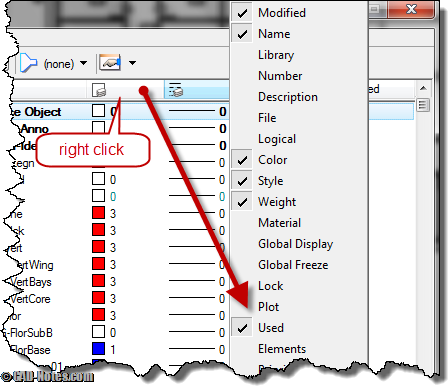
level manager properties

Now you should see the plot property column. Click the check mark for the level you don’t want to plot.
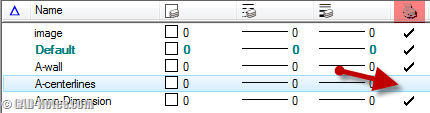
non-plot MicroStation level

To exclude attributes from plotting

Not only levels can be excluded from plotting. You can exclude elements with certain attributes too. You can set the print attributes. Yes, it’s similar with view attributes in this tutorial. Only view attributes is the setting for your screen, print attributes for printing/plotting.

To change it, go to print dialog box. Access settings>print attributes from MicroStation print dialog box.
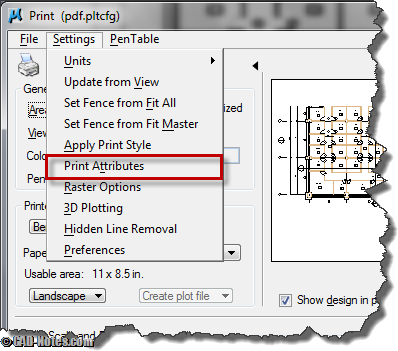
print attributes

Here you can change your attributes to print. For example, you can quickly exclude patterns from plotting. You can also do it by excluding the pattern level. But if you have your pattern on multiple levels, then it’s faster to do it here.
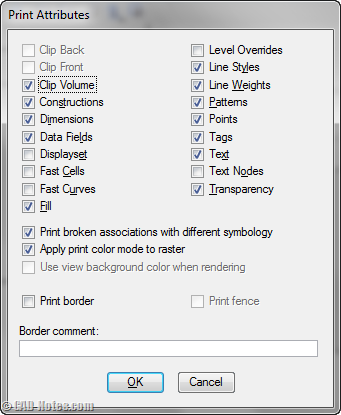
print attributes dialog

About Edwin Prakoso

I work as a Sr. Consultant in PT Cipta Satria Informatika. I've been using AutoCAD since R14 and Revit since Revit Building 9. I occasionally write for AUGIWorld magazine and I am also active in Autodesk discussion forum. I'm a member of Autodesk Expert Elite, an appreciation for individuals who give contributions to the Autodesk community.
Connect with me on twitter or LinkedIn.

Filed Under: MicroStation Tagged With: level manager, MicroStation Tips, Plot

0 0 votes
Article Rating
Subscribe
Login
Notify of
guest

guest

This site uses Akismet to reduce spam. Learn how your comment data is processed.

0 Comments
Inline Feedbacks
View all comments

Featured

How does the Autodesk Subscription license affect you?

Have you purchased Autodesk Subscription? How is your experience with the new licensing model? Do you like it better than the old model? Let’s hear your experience!

Recent Articles

  • The Misconception of CAD to BIM
  • Revit Pattern Alignment
  • Why BIM Dimensions (3D, 4D, 5D) Are No Longer Relevant

Advertisement

New on CADnotes

  • The Misconception of CAD to BIM
  • Revit Pattern Alignment
  • Why BIM Dimensions (3D, 4D, 5D) Are No Longer Relevant
  • Bridge: Controlled Data Sharing Between Stakeholders
  • Autodesk Construction Cloud Evolution

Meet the Authors

avatar for
avatar for
avatar for
avatar for
avatar for
avatar for

Get Connected

CADnotes on FacebookCADnotes on InstagramCADnotes on TwitterCADnotes on YouTube

© 2009 – 2026 CADnotes · Feedback · Privacy Policy · Become an affiliate

wpDiscuz