In this Article...
Not everyone have time to find out new features in their new AutoCAD software. And sometimes we skip several versions until we use the latest one. It becomes common we find strange symbols and sometimes it doesn’t work as we expected.

There are several questions that I found frequently asked. Here are the symbols.
Annotation monitor
This is the latest feature that shows symbols on AutoCAD drawings. It is introduced in AutoCAD 2013. Annotation monitor will give you warning when AutoCAD can’t maintain your dimension associative. It will flag the dimensions. When you click the exclamation mark, it will ask you to reassociate or delete the dimension.
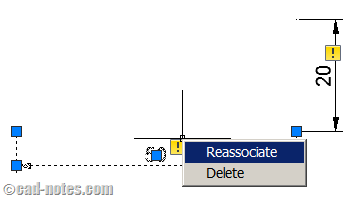
Annotation monitor is controlled by ANNOMONITOR system variable. By default, the variable value is -2.
Snipped from help file, -2 means:
Annotation monitor off. However, automatically turns on (sets ANNOMONITOR to 2), when a model documentation edit or update event occurs.
You shouldn’t see the warning if you don’t create 2D drawings from 3D model in AutoCAD. And of course, if you don’t turn on annotation monitor.
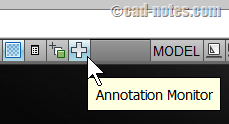
If you turned it on accidentally, you can turn it off by clicking annotation monitor at status bar, drafting tools group.
Geo location marker
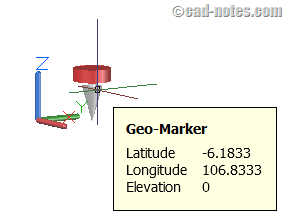
I don’t remember in which version this symbol is added. The symbol is a geo marker. It will appear only if you defined the geographic location. I usually set this when I want to render using natural sun light. However, there’s nothing you should be worry about. It will not show up when you render the model.
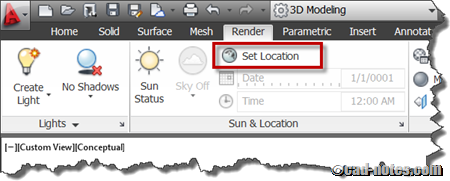
However, if you want to hide it anyway, you can set GEOMARKERVISIBILITY to 0.
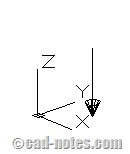
By the way, the symbol would appear like below if you set visual styles to 2D wireframe.
Geometric constraints
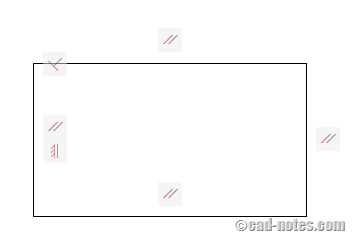
Geometric constraints might be useful, but not everybody use it yet. Or aware about it.
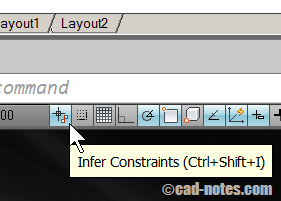
If you see the symbols like above, then your objects have geometric constraints. You might create constraints automatically if you turned on infer constraints.
Click the button below if you turned it on by accident.
Selection cycling
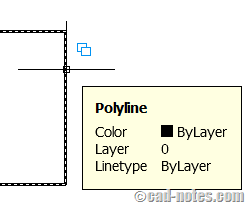
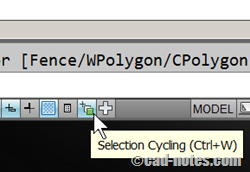
Selection cycling is a feature introduced in AutoCAD 2011. In very old version, we can cycle between object by holding [ctrl] and click the mouse button. Later, we can cycle by holding [shift] and pressing [space]. Selection cycling is a fancier way to do it.
If you move your pointer above overlapping objects, then you will see the symbol. And if you click it, you will see a list of overlapping objects. You can choose the object you want by selecting from the list.
However, like the other tools, you probably don’t like it. In AutoCAD 2013 I found that it is turned off by default. However, if you want to turn it off, you can click the button below.
Hatch gap notification
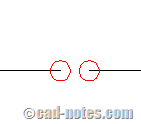
If an area has gap, during hatch creation AutoCAD will give you warning and show you the gap. The annoying thing about it is: it doesn’t disappear immediately. After you finish the hatch command, it will still appear.
However, it will disappear after you REGEN the drawing.
What symbol that confuse you?
Do you have the same experience, find a strange symbol and don’t know what it is? Does it make AutoCAD behave strange too? Share with us here!


I accidentally changed the symbol to abbreviation. I want to undo it but I don’t know how
I had a annotation monitor problem…thanks for the help. While trying to solve this I managed to lose my command line. How can I get it back?
Have you tried to press CTRL + 9?
what does this “^” symbol means? In lips and in writing scripts?
Did you mean ^C^C in macro?
It’s a code to press the ESC key twice.
In 3D there is a Triangle that appears at the location of circle or connection. What is it? and how to disable or hide with creating other objects.
https://www.cad-notes.com/5-autocad-symbols-that-might-confuse-you/
Good article, very helpful for those who are not familiar with these features. One thing I noticed was that your example(s) you have Use Icons set for the Tray Settings, and some people might have this disabled and have, for instance, [AM] displayed for Annotation Monitor.
We need a list for Civil 3D :)
Well, anyone who uses Civil3D care to make that list? ;) unfortunately I don't use it… Edwin Prakoso
cad-notes.com