Can we make a non-plot level in MicroStation?
Yes, of course. We can toggle off print property for that level. So when we plot our drawing, everything on that level will be ignored.
But if you open your level manager, you will not find the plot property. So where can we turn it off?
By default, the plot property is hidden. You need to show it first before you can toggle it on/off. We covered this before, in this MicroStation basic tutorial.
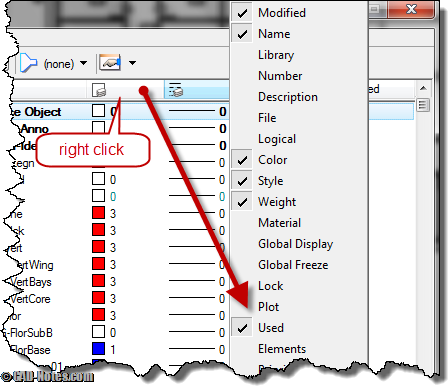
To show it, right click above properties title, then choose plot to activate it.
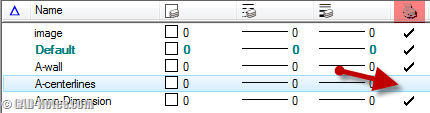
Now you should see the plot property column. Click the check mark for the level you don’t want to plot.
To exclude attributes from plotting
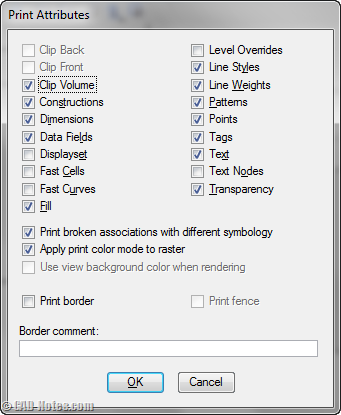
Not only levels can be excluded from plotting. You can exclude elements with certain attributes too. You can set the print attributes. Yes, it’s similar with view attributes in this tutorial. Only view attributes is the setting for your screen, print attributes for printing/plotting.
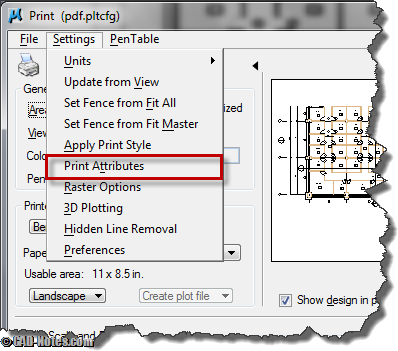
To change it, go to print dialog box. Access settings>print attributes from MicroStation print dialog box.
Here you can change your attributes to print. For example, you can quickly exclude patterns from plotting. You can also do it by excluding the pattern level. But if you have your pattern on multiple levels, then it’s faster to do it here.