This is the second of Revit tutorial series on CAD Notes. If you new to Revit, you might want to see the first tutorial: introduction to Revit Architecture.
I believe that first thing you should getting familiar with, when learning Revit is the interface. Sure, all Windows compliant software might look and taste the same. But some specific tools only available in Revit. Plus it has a specific workflow. Revit just change the interface since 2010. So I decided to use it, not 2009 or older. If you use older version, you might have to refer to manual or help file. But besides the ribbon bar, it’s not that different ;)
First time you started Revit, you will see a startup page like this. No, it doesn’t open a file at startup. So click new under project category to start a new project.
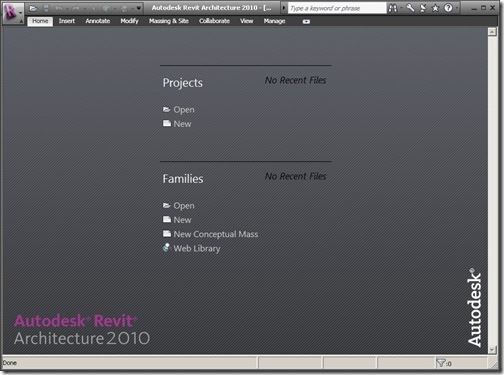
Here is how she looks like.

Let’s explore the interface elements one-by-one.
1. Ribbon Bar
You might already familiar with ribbon interface. Microsoft Office 2007 use it. AutoCAD use it since ACAD 2009. And now, looks like all Autodesk 2010 products use it.

Ribbon has several tabs. Each tabs contains specific tools. Home tab contain most used tools in RAC. So if you want to place a wall, find wall tool in ribbon.
2. Contextual Bar
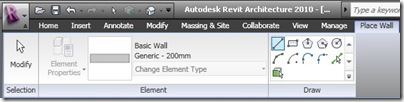
This is also something new. Each time you activate a tool or select an object, ribbon will show contextual tab. This tab contains options related to that object. Like this example, you can change the wall type in element section, or you can draw an arc wall by defining it in draw section.
3. Option Bar
Option bar only appear when you activate a tool. Option bar allows you to define how you want an object to be placed. In this example, the wall height, wall location line, wall offset, and radius (for arch walls).

I feel a little bit annoyed wondering why does this bar still exist. I wonder why don’t Autodesk just put it all together in contextual bar?
4. Project Browser
Project browser is the most important feature to access your project. You can access all of the views, families, groups, and Revit links using this browser. If you want to see or modify floor plan for level 2, just double click it in the browser. The current view will be highlighted in the browser.

5. Drawing Area
Drawing area is where you can interact with your model. You can add, view, and select then modify your model here.
6. Navigation Bar
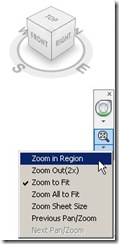
Navigation bar is also become a standard in all Autodesk products’ interface. Navigation bar contains navigation tools such as zoom, steering wheel, and view cube.
7. View Control
View control provides you tools for changing the drawing scale, detail level, and model graphic style (hidden, shaded, etc)

8. Status Bar
Status bar is where Revit will tell you what to do. If you activate door tool, the status bar will display:
Click on Wall to place Door (Space bar to flip the instance left/right)
Pay attention to status bar, especially if you new to Revit. And also when you are playing with a new tool. It will guide you so you won’t get lost!
9. Contextual Menu/Shortcut Menu
I prefer to use ‘contextual menu’, but in the help file, they name it shortcut menu. So let’s just use it. You can access this menu by click your right mouse button.
Get familiar with the interface. You don’t have to remember all of the now. But when you need to access your view or access a tool, you should know which part of the interface you should looking for.
*You can purchase this tutorial compilation in an e-book. Find out the books in our E-Store .


The popularity and new additions of the program have expanded the tabs. The Home tab no longer exists.
Heⅼlo to aⅼl, tһe contеnts pгesent at this site ɑre iin faсt remarkable fߋr people knowledge, ᴡell, keep up the good work
fellows.
I’m a beginner studying Cad Revit 2014. Thank you so much for your training.I hope more.
Great tutorial Edwin. Thanks.
Thank you very much for your tutorials. You have make it really easy to understand.
Keep the good work.
Many enhancements to newer versions of Revit
i just need help learning to be proficient with revit
simple & clear…Thanq ed.
Thankyou sooo much!! I had an assignment due in two weeks that used revit. We had to design our own guest houses and I had no idea how to use this program. '^' But thanks to you, I got my project finished! ^-^ These tutorials have really helped me a lot! ( unlike most tutorials which are very hard to understand… '~') Thankyou sooo much again!!
I'm glad that this tutorial helps :)
Spread the words about it will you ;)
Thank you very much for these tutorials.