Receiving AutoCAD files with XREF can give us headache. You probably already familiar with this warning:
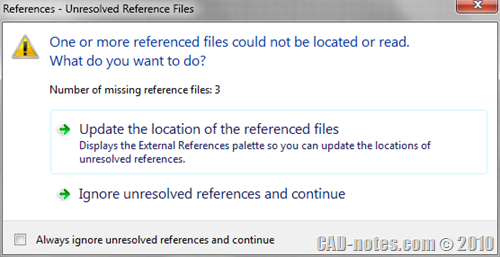
It means that AutoCAD can’t find the reference files, because the file location on your computer is not the same with the sender’s computer. If you open the file references palette, you will see warning that the files are not found.
Please forgive me for being lazy, I don’t even give the files appropriate name and just use AutoCAD default file name when saving.
![external_reference_files_list[3]](https://www.cad-notes.com/wp-content/uploads/2010/10/external_reference_files_list3.png "external_reference_files_list[3]")
Tips: If you are the one who send the files, you can use eTransmit to keep the files’ path.
You can try to move those files to match the location, or try to redefine each file’s path. However, sometimes it’s not easily because there could be many files and folders. Or they may be on a location that you can recreate. There is a quick way to resolve this. You can add the folders to support file search path. Go to AutoCAD option, then click add. Type or browse to the folder, then click OK.
Your project folder is now listed. If your project has several folders, then add them all. For example: if Project CAD-notes.com has sub-folder arch, struct, and mep, you have to add the subfolders too.
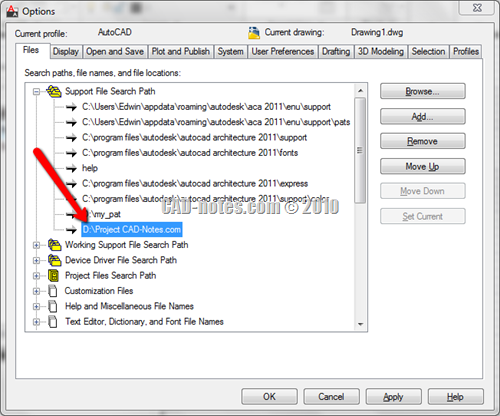
Now open your file, all the reference files path will be resolved! It will work for files with relative and absolute path. And this trick will not change the original path definition.
Remember, adding many support path to all files may confuse AutoCAD and find wrong files. I haven’t tested this, but if you have files with same name on different folders, AutoCAD may pick the wrong file. So when you are finished with the files, remove the folder from support file search path list.
Update: More Dirty Trick
JGA mention that you can also move all your files to the same folder with the host drawing. I tried it, and it actually works! Thank you JGA, I’ve never known that trick :D
Josh Jones also provide a trick using REDIR. You might want to see how to use REDIR here.


Thank you so much, I just opened my CAD a day before the deadline to check if it was still OK, and without this single site, I would be in serious trouble right now.
Greatly Appreciate it!!
Jack.
Thank you for this post. I learned several new techniques for dealing with xref path issues.
Here’s a link to a lisp routine (XRP) that will change full path xrefs to relative xrefs: http://www.plantbuzz.com/cad/cad_utils.htm
Relative xrefs solve most of the issues that come up with xrefs.
HI Mr. Prakoso,
Thanks so much for this information. We walked in to work this morning, and all of our files were renamed, and of our xref files seemed to be lost. This step you displayed, relieved me a lot of stress. I appreciate it.
Dear Professor,
I am Cambodia and my name Vibol.
Please help me ! my auto-cad file always alert with 24 province of Cambodia at starting time. I have one solution is researching file fast from my computer (type in research box: *.fast) and then delete, but I can't delete it (file fast) right now. It makes me bored so much. Anyway thanks and all the best wish.
Vibol SEAN
Hi, Professer
i have problem when i open my file but it wraning that " One files could not be located or reade or more referenced. What do you want to do?
How can i solve that?… ขอบคุณค่ะ
You could also switch to another CAD software. Perhpas one that doesn't suck!
You may open/extract/read/export-import/recover .dwg file owing to http://www.autocad.repairtoolbox.com
Necesito ayuda con file references
tengo un archivo donde hice modificaciones lo guarde en el previo me aparace los cambios que hicce pero a abrirlo no puedo ver essas modficaciones sino me aparecen otros dibujos mas antiguos.
cual es el problema ayudenem porfis
ademas me aparece ese cuadrito de files references ahi ta mi modificaiones pero no puedo abrirlas
I have the ( or rather 46 ) reference problems on a drawing I've been emailed.
I'm trying to open in Autodesk 2011 on mac.
Your solution is easy to do….- but doesn't work for me ?!?
Preview on my drawing looks perfect, but problems still exist after adding the path to the drawing..
can you help with this
Kasper, I don't use AutoCAD for Mac, so I'm not sure if it will work for you.
I'm sorry for not being more helpful.
An even dirtier trick is just to put the referenced files in the same folder as the host drawing!
Thank you JGA,
I've never known that dirty trick :D
Thx a lot man that saved week of re-work!
Thanks a lot JGA and Edwin, this helped a lot. JGA’s trick to put the jpg or pdf or other files to the cad file’s folder knocks it off….Cheerssss!