• Home
  • Training Books
  • Subscribe to Our Email Newsletter
  • About
    • Contributors
    • Feedback
    • Contact
    • Privacy policy
    • Cookie Policy

CADnotes

CAD Tutorials and Best Practices for professionals and students

  • Featured
  • AutoCAD
    • AutoLISP
  • Revit
    • Revit Architecture Basic
    • Revit MEP Basic Tutorial
  • Inventor
  • MicroStation
    • MicroStation Basic Tutorial
You are here: Home / AutoCAD / Creating Angular Dimension Larger than 180 deg

Creating Angular Dimension Larger than 180 deg

July 2, 2009 by Edwin Prakoso 12 Comments

Can we create angular dimension larger than 180 degrees in AutoCAD?
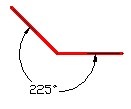
dim

Well if you see the recorded animation below, you can’t do that by selecting lines, obviously.

ang01

But you can create it in AutoCAD using dimangular by selecting line’s vertex.

From your AutoCAD ribbon (or toolbar) activate the tool. OR type DIMANGULAR then [enter], you will see on the command line these options:

Select arc, circle, line, or <specify vertex>:

Press [enter] to specify vertex. Now, select the vertexes.
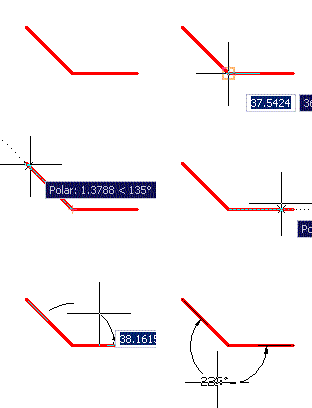
vertex

You need to use some option, but yes, you can do it!

If you are interested to see more tips, see our 100 AutoCAD tips compilation here.

Share the knowledge:

About Edwin Prakoso

I work as a Sr. Consultant in PT Cipta Satria Informatika. I've been using AutoCAD since R14 and Revit since Revit Building 9. I occasionally write for AUGIWorld magazine and I am also active in Autodesk discussion forum. I'm a member of Autodesk Expert Elite, an appreciation for individuals who give contributions to the Autodesk community.
Connect with me on twitter or LinkedIn.

Filed Under: AutoCAD

0 0 votes
Article Rating
Subscribe
Login
Notify of
guest

guest

This site uses Akismet to reduce spam. Learn how your comment data is processed.

12 Comments
Inline Feedbacks
View all comments
Rajab Wawa
Rajab Wawa
9 years ago

Thank you very much..great job

0
Reply
Vicente
Vicente
10 years ago

Thanks Edwin. I find very useful all your tips. I learn a lot with them. Greetings from Maracaibo, Venezuela.

0
Reply
« Previous 1 2
wpdiscuz   wpDiscuz

Featured

6 Things AutoCAD Command Line Can Do for You (Infographics)

AutoCAD Command Line is the most important feature in AutoCAD. Veteran users can use two hands (one on the keyboard and the other using mouse) and draw very quickly. It is faster than relying on the GUI only.

The new users probably using GUI more than older users like me. They prefer the Ribbon and use the Command Line less. 

In this post, you can see 6 things AutoCAD Command Line can do to make your life easier. You don’t have to use them all, but at least you know it can be done. If you think it’s good, use it. But if you don’t like it, leave it.

Recent Articles

  • The Evolution of BIM: From 3D Models to Information Management
  • The Misconception of CAD to BIM
  • Revit Pattern Alignment

Advertisement

New on CADnotes

  • The Evolution of BIM: From 3D Models to Information Management
  • The Misconception of CAD to BIM
  • Revit Pattern Alignment
  • Why BIM Dimensions (3D, 4D, 5D) Are No Longer Relevant
  • Bridge: Controlled Data Sharing Between Stakeholders

Meet the Authors

avatar for
avatar for
avatar for
avatar for
avatar for
avatar for

Get Connected

CADnotes on FacebookCADnotes on InstagramCADnotes on TwitterCADnotes on YouTube

© 2009 – 2026 CADnotes · Feedback · Privacy Policy · Become an affiliate

wpDiscuz