• Home
  • Training Books
  • Subscribe to Our Email Newsletter
  • About
    • Contributors
    • Feedback
    • Contact
    • Privacy policy
    • Cookie Policy

CADnotes

CAD Tutorials and Best Practices for professionals and students

  • Featured
  • AutoCAD
    • AutoLISP
  • Revit
    • Revit Architecture Basic
    • Revit MEP Basic Tutorial
  • Inventor
  • MicroStation
    • MicroStation Basic Tutorial
You are here: Home / Revit / How to: refer several sections to same section view in Revit

How to: refer several sections to same section view in Revit

November 14, 2011 by Edwin Prakoso 1 Comment

When we’re designing a project, there is a good chance that we will have same details, but in different locations. For example, we have same stair details on different locations. We need to place section to each location. But of course, it doesn’t make sense to create a detailed view for each location.

You can create one detailed view, and refer other section to the first view.

To do this, after you activate section tool, activate reference other view in option bar and choose view you want to use as reference.
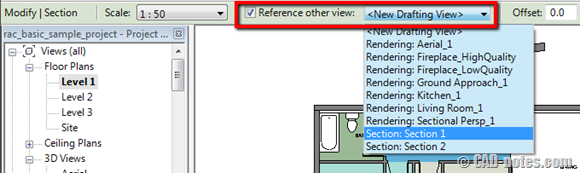
reference_other_view


This method works for sections, callout, elevation views, etc.

Share the knowledge:

About Edwin Prakoso

I work as a Sr. Consultant in PT Cipta Satria Informatika. I've been using AutoCAD since R14 and Revit since Revit Building 9. I occasionally write for AUGIWorld magazine and I am also active in Autodesk discussion forum. I'm a member of Autodesk Expert Elite, an appreciation for individuals who give contributions to the Autodesk community.
Connect with me on twitter or LinkedIn.

Filed Under: Revit Tagged With: callout view, section view

0 0 votes
Article Rating
Subscribe
Login
Notify of
guest

guest

This site uses Akismet to reduce spam. Learn how your comment data is processed.

1 Comment
Inline Feedbacks
View all comments
Alex Gore
Alex Gore
13 years ago

I use this all the time

0
Reply
wpdiscuz   wpDiscuz

Featured

Sharing files and designs with Autodesk 360

If you have Autodesk account, you can have free 5GB online storage. You can use it to share large files or provide 3D viewers. You can showcase your design on your company website or your personal portfolio!

Recent Articles

  • The Evolution of BIM: From 3D Models to Information Management
  • The Misconception of CAD to BIM
  • Revit Pattern Alignment

Advertisement

New on CADnotes

  • The Evolution of BIM: From 3D Models to Information Management
  • The Misconception of CAD to BIM
  • Revit Pattern Alignment
  • Why BIM Dimensions (3D, 4D, 5D) Are No Longer Relevant
  • Bridge: Controlled Data Sharing Between Stakeholders

Meet the Authors

avatar for
avatar for
avatar for
avatar for
avatar for
avatar for

Get Connected

CADnotes on FacebookCADnotes on InstagramCADnotes on TwitterCADnotes on YouTube

© 2009 – 2026 CADnotes · Feedback · Privacy Policy · Become an affiliate

wpDiscuz