Autodesk has launched their 2013 product lines recently. You probably already read the new features on many website already. But if you haven’t, let’s see and give your comments about the new features.
Welcome screen
Like every new release, Autodesk introduce new appearance of welcome screen. 2013 has no exception.
I’m not a big fan of welcome screen. But it’s there, whether you like it or not. If you do like to take a glance at this screen when you launch AutoCAD, now it has links to AutoCAD Exchange Apps and Autodesk 360.
It makes sense that Autodesk want to promote those websites, because they are relatively new. AutoCAD has exchange apps store in AutoCAD 2012, but we can only access it from within the application. Now they move it to website.
Autodesk 360 is the platform for all Autodesk services. You can access all the features here.
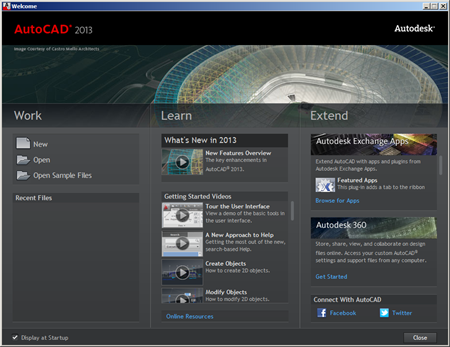
I personally prefer this screen is off by default. I’ve never seen anyone actually read it. And it feels like I’m visiting a website and they give me pop-ups to subscribe or purchase their products. The thing is, I already purchase it.
Command line enhancement
Command line has some facelifts. When you see it at the first time, you will see additional buttons to close it and access AutoCAD options.
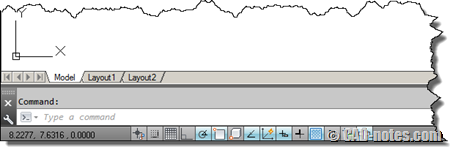
See the icon, it’s like Windows PowerShell, isn’t it?
There are not much differences if you leave the command line docked. But try to drag it and undock it. It looks sleek, isn’t it? Doesn’t consume too much space.

You can resize it by dragging its corner. I like it narrow and one line only, then place it on the left bottom.
Now try to activate a command and draw something. You will see three lines (by default) of prompt history above your command line.

If you don’t like it, you can click the customize button and change lines of prompt history. Or you can change CLIPROMPTLINES variable for less (or more) lines.
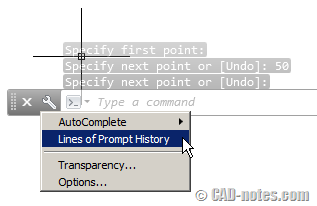
Notice that you also have transparency option when its undocked. I personally like this new look, now I can have more desktop area but still have fully functional command line.
There’s one more difference when you use undocked command line. Try to press F2. In previous version and when you docked it, it will open separate AutoCAD text window. But this time, you will see the history above your command line.
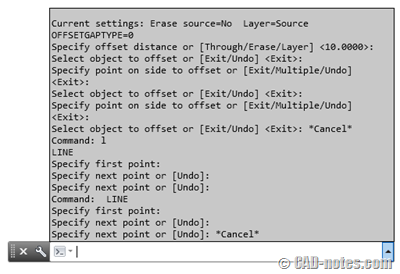
If you want to open text Window, you can press [ctrl] + F2.
Remember: this shortcut change is only when you undock it.
Another enhancement is clickable option in command line. So if you don’t like using dynamic input, but you are lazy to type character to change option, you can use it.

See the new command line in this video on YouTube
In-canvas property preview
If you select object and change the properties using property palette, then you will see immediate preview on your screen.
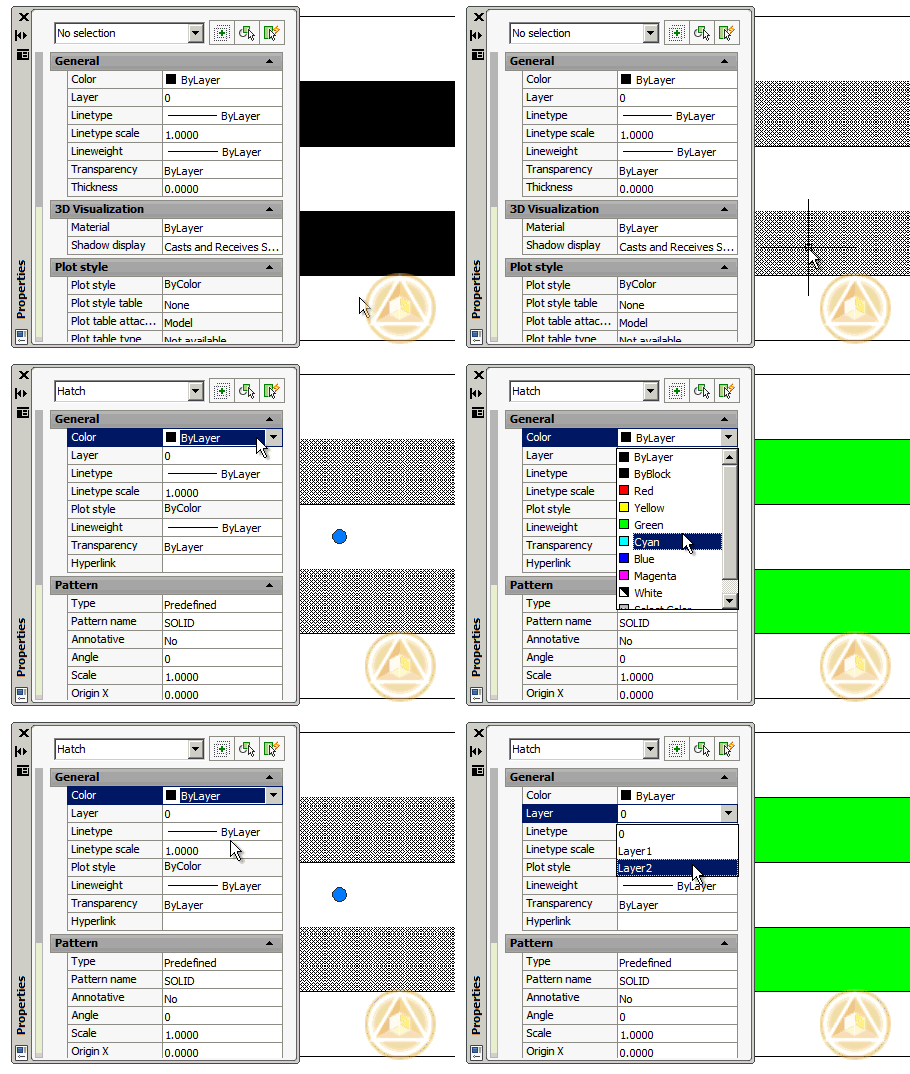
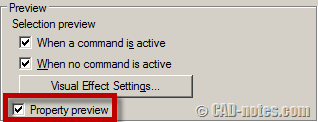
You can turn off/on this feature from AutoCAD option, selection tab, preview category.
You can also change PROPERTYPREVIEW variable to ON/OFF.
Quick view drawing
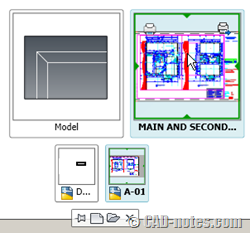
There is small change in quick view drawing. Now you can distinguish which file and which layout is now active. It is shown in bold font.
What do you think about AutoCAD 2013 interface?
I like the new command line, and use it undocked since the first day I installed it. I don’t see any value in welcome screen and quick view drawing. And I think property preview might be useful. But honestly I will have it turned off by default.
What about you? Do you like these interface enhancements?


having big troubles with new command line . it messes with the right click – context menu behavior .. had to install acad 2012 instead
Hi Edwin,
That godamn new CTRL+2 text window is messing with my tried and tested script. I'm trying to use the -units command (putting the "-" before certain commands would stop them from opening their dialogue boxes and let you enter options through the command line) but the new text box opens and interrupts the script. grrr.
do you know an easy way to disable the text window for good?
Thanks,
TD
Hi Edwin,
I am packaging AutoCAD lT 2013 and have gor request from client to diable the Welcome Screen. I included the following key in the MST
[HKEY_CURRENT_USERSoftwareAutodeskAutoCAD LTR18ACADLT-B001:409]
"LaunchNFW"=dword:00000003
But whenever I launches the shorcut , it will go for self heal (it is the part of package) and later on owerwrite the value to 1.
I don't want the Welcome screen to be apper.