• Home
  • Training Books
  • Subscribe to Our Email Newsletter
  • About
    • Contributors
    • Feedback
    • Contact
    • Privacy policy
    • Cookie Policy

CADnotes

CAD Tutorials and Best Practices for professionals and students

  • Featured
  • AutoCAD
    • AutoLISP
  • Revit
    • Revit Architecture Basic
    • Revit MEP Basic Tutorial
  • Inventor
  • MicroStation
    • MicroStation Basic Tutorial
You are here: Home / AutoCAD / Why I can’t Use Formula in xls Created by Data Extraction?

Why I can’t Use Formula in xls Created by Data Extraction?

July 16, 2009 by Edwin Prakoso 3 Comments

data extraction table

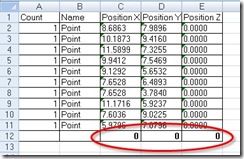
Have you used AutoCAD data extraction? This is a very handy tool to create a report about any data from your AutoCAD drawing. Some of my colleague choose to extract the drawings information to excel instead of directly to his drawing. They want to modify the values further, and using excel is easier (and faster).

But here comes the problem: when he tried to sum any column, he can’t get excel to calculate the values. What’s wrong?

Apparently, AutoCAD export all the data to text strings, not numbers. That’s why you can’t get them calculated.

To fix this is easy:

  1. Select all the cells contain your data in excel, click copy on the ribbon (or press [ctrl] + C) to copy them to clipboard.
  2. Open notepad, paste them here.
  3. Select all (you can press [ctrl] + A) then copy this value to clipboard.
  4. Paste them back in excel.

Now your formula should works ;)

Share the knowledge:

About Edwin Prakoso

I work as a Sr. Consultant in PT Cipta Satria Informatika. I've been using AutoCAD since R14 and Revit since Revit Building 9. I occasionally write for AUGIWorld magazine and I am also active in Autodesk discussion forum. I'm a member of Autodesk Expert Elite, an appreciation for individuals who give contributions to the Autodesk community.
Connect with me on twitter or LinkedIn.

Filed Under: AutoCAD

0 0 votes
Article Rating
Subscribe
Login
Notify of
guest

guest

This site uses Akismet to reduce spam. Learn how your comment data is processed.

3 Comments
Inline Feedbacks
View all comments
Nicolas
Nicolas
11 years ago

you can also select the cells marked with the green tip and, when the exclamation mark appears besides the selection, right/click on it, and select “Convert to number”

0
Reply
Ed
Ed
13 years ago

i'm afraid it doesn't work :(

0
Reply
Ewen
Ewen
16 years ago

You can also use "Paste Special" to get around this in Excel.1. Copy a cell with "1" in it. It can be formatted as text – that doesn't matter.2. Highlight all the cells with numbers in them you with to treat as numbers.3. Edit -> Paste Special -> Multiply.4. Rejoice!

0
Reply
wpdiscuz   wpDiscuz

Featured

5 Reasons Why You Should Use AutoCAD Block (Infographics)

Here are the reasons why you should use AutoCAD blocks. If you haven’t used it, this perhaps can encourage you.

Recent Articles

  • Autodesk Forma: One Platform to Rule the AEC Lifecycle
  • Accessing Autodesk Docs Files from Windows Explorer
  • The Evolution of BIM: From 3D Models to Information Management

Advertisement

New on CADnotes

  • Autodesk Forma: One Platform to Rule the AEC Lifecycle
  • Accessing Autodesk Docs Files from Windows Explorer
  • The Evolution of BIM: From 3D Models to Information Management
  • The Misconception of CAD to BIM
  • Revit Pattern Alignment

Meet the Authors

avatar for
avatar for
avatar for
avatar for
avatar for
avatar for

Get Connected

CADnotes on FacebookCADnotes on InstagramCADnotes on TwitterCADnotes on YouTube

© 2009 – 2026 CADnotes · Feedback · Privacy Policy · Become an affiliate

wpDiscuz