If you like doing photorealistic rendering, then you probably already read how you can setup rendering with natural sunlight in AutoCAD. There are several question about how to setup rendering with artificial lights. Basically they are the same.
You can place artificial lights as necessary then render it using setup that you use when rendering a scene with natural light.
Adding lights the easy way: Using weblights
The easiest way to add artificial lights is by using weblights or IES lights. It will create lights just like in the real world. You don’t have to adjust anything.
Snipped from CGArena article:
You can think of it as a digital profile of a real world light. In 3d software like 3ds max it can be used for creating lights with shapes and physically accurate form.
You can read further explanation about IES lights on this article here. Using spot, point, and distant lights will need you to adjust more settings. Using weblights is the easiest way to achieve realistic result. You can try using other type of lights later. But let’s just make it easy this time.
Rendering with both natural and artificial lights
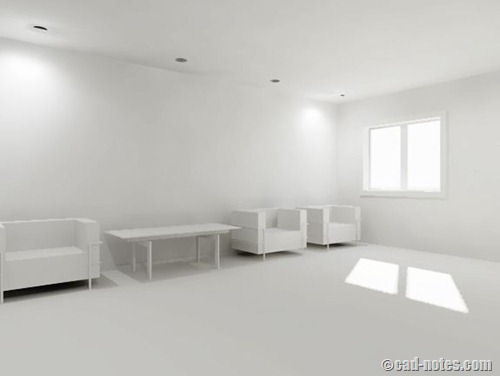
This is how the same scene with exact same settings rendering result. The only difference is I added 4 web lights.
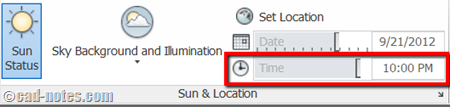
And what about night rendering? You need to adjust time to night (when sun is no longer in the sky).
Wait, why would you want to turn on sun and set the time to night? Why not just turn off the sun and the sky background? The sky is dark and no light anyway!
Setting up sun and sky status
Believe me, you will get different result. I’m not sure why, but I think the rendering also count the sunlight ambient on the night sky. I don’t know why it seems not calculating bounce lights from artificial lights.
Let’s see the comparison.
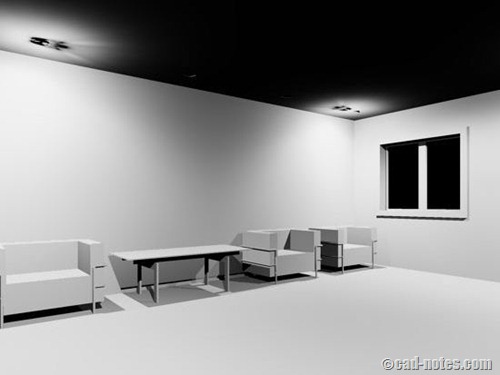
With sun and sky off
This scene was rendered with sun off, sky off.
It was pretty quick. Only took about 10 seconds on my M4500 mobile workstation.
With sun and sky on
For the next rendering, I turned on sun and set sky to sky background and illumination. But this time, I set the time to 10 pm. So it’s pretty much simulate night time.
Then render the scene again. It took much longer time: 2.30 minutes!
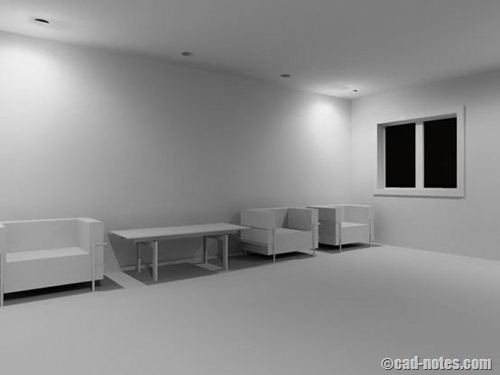
As you can see, just changing those settings gives very different result. And increase the rendering time significantly.
Notice the dark ceiling on the first image. It’s dark on ceiling, but the room looks overexposure. It doesn’t matter if you change the exposure settings. It won’t change the result.
The second image looks much more realistic. You can see the ceiling and not too bright at the scene.
I know there are different method people use to create realistic rendering. However, if you don’t do many renderings you will want the setup to be easy and quick. This is a method you can use. The downside is it will take longer time to render. If you think it’s too long, you may want to render it on Autodesk 360.


Corinthiahs Jersey Νew Yoork Jets Jersey Toronto Blue Jays Jersey
Thank you very much for this tutorial. I also tried to render a part of a house. I followed all the information and had a better rendering. But, I also agree with Monrroy. I got the same issue. Please explain how to fix it.
Usually this problem is because you don’t use the right measurement unit for your drawing. For example: you use imperial template to create metric drawing. Can you check your drawing measurement?
i liked autocad 3d with reandring but i don’t create animation with cad if any person now animation so please explane me .
Ajay,
AutoCAD only can create simple walkthrough. It’s not really appropriate to create animation.
hey there!.. I'm modeling some part of a house, I rendered it simulating daytime and everything went just fine, but now I want to render it to get some images at night, so I set the render time about 11pm, I placed the artificial lights and all that stuff, but for some reason when I render it the lights are so weak that they only lights the surrounding walls in a very small radius, I changed the intensity factor (i'm not sure if "intensity factor" is the correct term in english, I'm chilean so I use Autocad in spanish, but I mean that number that multiplies the real intensity) but nothing happens, it remains the same. Could you please tell me what parameter(s) I have to play with to get the room properly illuminated?