This is another common question from an AutoCAD user. How can we create solid/fill pattern in MicroStation? In AutoCAD, there is a pattern type for solid fill. If you have tried to use hatch and pattern in MicroStation, you will not find it.
When creating a closed element
When we create a closed element in MicroStation, you will see options to define color fill. Try to use place block, place circle, and other closed elements. You can have this option too when you are creating closed element using SmartLine.
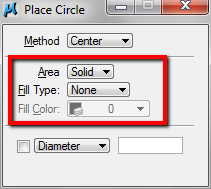
What types of color we can use? You can use indexed colors, true colors, Pantone colors, or gradient colors. Try these options.
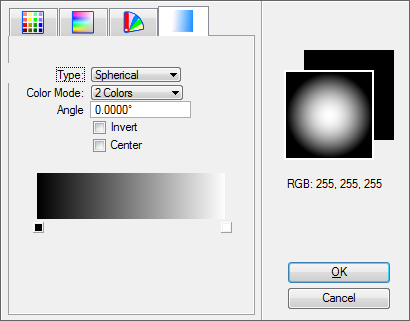
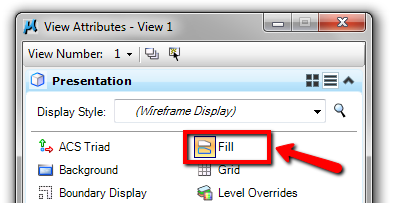
You should see the color on your screen when you create the element. If you don’t, check the view attributes. Make sure the option to show it is active.
For existing elements
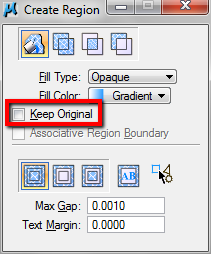
Now what if we already have the elements in our drawing? Should we create new element? Of course not. You can use create region tool. This is pretty similar with pattern in AutoCAD.
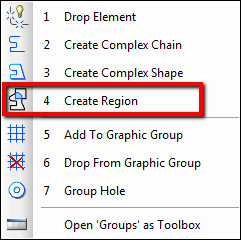
There are some method you can use to define the region. Flood probably is the most comfortable method. Create region will remove existing objects that are used for defining the region. If you want to keep the original elements, make sure you activate the keep original option.
If you want to see creating the color fill in action, see the video here on our YouTube channel.


in microstation hatch command is not working.what is the salusion .
I have followd all the steps above but all i get is a colored line around my element
thank you so much