One thing that frustrate AutoCAD users who are migrating to MicroStation is finding similar tool in MicroStation. I believe the MicroStation users who are migrating to AutoCAD will have the same problem as well.
I have posted how you can find the similar tool in MicroStation. However, finding the tool doesn’t mean you can use it like in AutoCAD. Many tools work differently. One question I have in common is ‘what is similar to AutoCAD MATCHPROP’? If you have tried the DWG key-in, then you will find SmartMatch is the equal tool. Then why the attributes are not changing?
We don’t use SmartMatch to change object attributes, but using change element attributes.
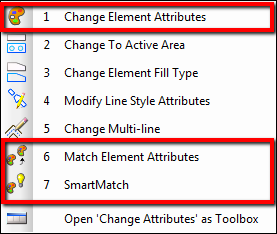
Before we discuss about match attributes and change attributes in details, let us see how to change the attributes, matching to existing object quickly.
Hip Tip: Match and Change Attributes Quickly
Activate the change element attributes, and see the tool settings. You can click the match element attributes and pick an object to obtain the attributes value.
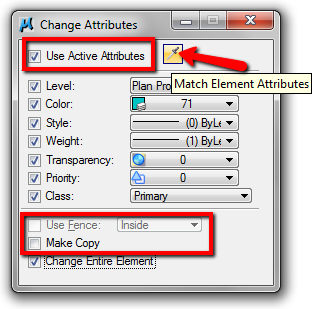
You can activate use active attributes to also change the active attributes to match the selected object attributes. If you don’t want to affect the active attributes, the leave it unchecked.
Now you can activate any properties you want to change. You can also use fence for changing multiple objects attributes, and you can also create a duplicate without changing the original object attributes.
But this tool is only for changing the attributes. You don’t change the text style, dimension style, hatch/pattern, etc. You need to use different tool for that.
Matching Element Attributes to Active Attributes
Match properties in AutoCAD works differently with match attributes in AutoCAD. There are several MicroStation tools to match (and change) elements attributes:
- Match Element Attributes
- SmartMatch
- Match Curve Settings
- Match Surface Settings
- Match Dimension Attributes
- Match Multi-line Elements
- Match Projections
- Match Pattern Elements
- Match Text Attributes
So many of them? Yes, they are. But don’t be intimidated. I believe you will only use several of them frequently, but at least now you know there are tools for those purposes.
Those tools are only to change the active attributes or styles, to match the attributes of the object you selected.
The idea is to allow you to create new objects with the same attributes with existing element.
To change other objects attributes, you need to use change element attributes. Well, and the other tools like change dimension and change text attributes.
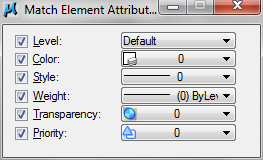
Let us try it. Activate match element attributes. You will see the tool settings like this. Activate the attributes you want to match.
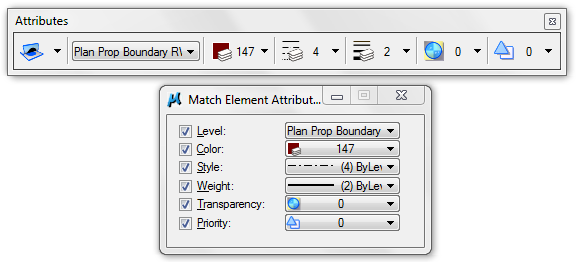
Now pick any object from your drawing. You should see the attributes updated. See that the active attributes are also updated.
Try to use other match tools.
Changing Other Element Attributes
We already discuss how you can change element’s attributes. But as I mentioned before, you may need to use other change tools to change text attributes, dimension attributes, etc.
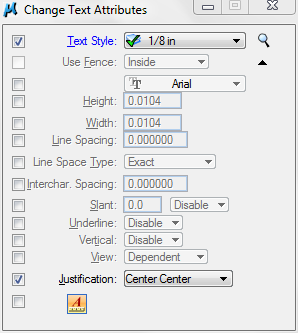
It is basically the same with change text attributes.
See that you can change dimension style with change dimension tool.
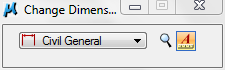
Try different tools for changing the styles to see how they work. You know where to find those tools, don’t you? You can find change text attributes under text tools group, and change dimension under dimension tools group.
See how you can use change elements attributes on our YouTube channel.


I realize many of these comments are years old, but I tend to think that people that detest MicroStation just don’t have it set up correctly. For example, there was an “expert” on AutoCad years ago complaining that MicroStation had no way to hit the Esc key to stop a command. WRONG ! ! If a person thinks AutoCad is perfect, they have the AutoCad blinders on.
True.
MicroStation has its own benefit, and it’s not the same as AutoCAD. Each is unique.
AutoCAD also has some advantages, but it doesn’t mean the other software is bad.
Hi,
I would appreciate hints on how I can match text heights and widths in microstation. This as we know is easy to accomplish in AutoCAD but I have many text that I need to change the attributes in microstation and I don’t want to be clicking and changing them individually. I need a tool like match properties in AutoCAD.
Thanks
Hi Edwin,
Do You know any available microstation tool which can be used to connect 2 objects, a sort of ‘connector’ or ‘leader’.
Not only graphically (i.e. with an arrow on terminator) but I’m looking for sth which will make a linkage.
Thank You!
Hi
Is there a way of using this tool on a reference?
Many thanks
Thanks for the article. I have a question regarding using the fence to select objects. In your image, the fence is greyed out, and when I use the tool it is also greyed out. How can I select the fence so I do not have to pick each element individually? Thanks.
Edwin, I like your style of writing and presentation. It is onversational, friendly and easy to understand the contents.
Thank you very much Val :)
I’m glad that you like it!
Oh Autocad, how my heart desires thee… Microstation's match tool is an embarasment, much like many other features or lack of. I cannot believe people put up with it (me specially). It should be no more than 2 clicks to do something simple like this.
The truth is there are some features in AutoCAD that're better than MicroStation. And vice versa. But most of the time we think that way because we are using MicroStation using AutoCAD workflow. I learned that sometimes the ugly tools are meant to work that way. Kind of hard to explain… But each of them has different market. If everybody thinks that AutoCAD is always better… Why would people use MicroStation anyway? ;)
Hi Edwin. I try to find good in just about everything I do, including microstation. And although there are some (very few) features that autocad may not have by default (like datafield incrementing), I come to think that microstation is around so that Autodesk does not become a monopoly. I absolutely have no idea why someone in their clear conscience would choose Microstation over AutoCad. I use both at this point and the latest version of AutoCad is leaps and bounds ahead of Microstation. Its really a shame (for microstation). I talk to Bentley reps, but I don't think Bentley has the resources to really turn this product around. To me, its just a legacy application at this point, I'm sure people will use it, but not because its better than AutoCad. It isn't.
Yes, I do use microstation for 95% of my work (because employer requires it).
Yes, I consider myself a power user (when compared to the majority, although I'm sure I'm far from it.)
Yes, autocad is not perfect, but in comparison it is just about.
Yes, I think that government alone is keeping bentley from flopping over.
Yes, I would like to see a real competitor to AutoCad, like solidworks to inventor. It makes both products better.
Thanks for your posts Edwin.
Viktor.
Thank you for sharing Viktor. As a user, sometimes we have no choice except using what our company gives us. Or because our client want us to use it.
What I can do is trying to help people use it better. Let's hope that they will compete. Keeps the Autodesk people busy ;)
Are you using MicroStation only, or you also use their vertical products?
We don't use vertical products yet, although there's a suite by Bentley that would help quiet a bit. It seems that it would be light years before we get all the departments, managers, supervisors to agree on it though.
Good talking to you.
Dear Edwin ,
this is pretty interesting, while trying your second example of smartline (I -section), (refer https://www.cad-notes.com/2009/11/using-tool-settings-…
i tried to make the last line round at its starting point & sharp at its end point.
I am not able to do so, either its making both the end round or sharp.
Help…
Regards
Saurabh saran