June 20, 2013

Revit Section Line Disappear in Large Scales

1 Flares 1 Flares ×

I had this question:

“Why when I created a section in 1:100 view scale, then I change the scale to 1:500, the section line disappear? But if I create the section line in 1:500 view scale, I can see the section line…”

Revit has many properties to control object appearance and visibility. This is a sample of graphics parameters category. If you want to reproduce this inquiry, open a Revit project. Make sure view scale in view control is showing 1:100. Place a section line in a plan view. Now change the view scale larger than 1:100. The section line is magically disappear. But this is not cool, unlike David Copperfield made the Statue of Liberty disappear. He didn’t want this.

To allow the section line appear in larger scale, we need to change a property. Find the section view in project browser.

When we create a section line, a section view will be added in project browser, under sections category. Revit will name it ‘section 1’, ‘section 2’,… by default. You can rename it if necessary.

Right click above the section name, and click properties in contextual menu.

section_properties

You will see a dialog opened.

Alternatively, you can set the view scale back to 1:100. When the section line appear, select it. Right click, select element properties from contextual menu.

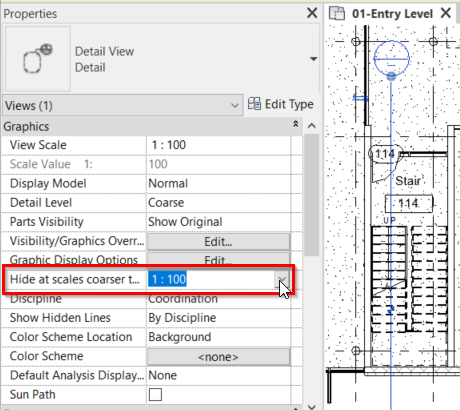
In graphics category, find ‘hide at scales coarser than’ parameter. Change the value to larger scale. Use the largest scale you want the section line to appear.

Element_Graphic_Properties

Now the section line will appear in larger scale than the scale you use to create it.

1 Flares Twitter 0 Facebook 1 LinkedIn 0 Google+ 0 Email -- Email to a friend 1 Flares ×

Advertisement


You might also interested to

About Edwin Prakoso

Edwin works as an Application Engineer in Jakarta, Indonesia. He has 4 years experience in building industry, then start to work for Autodesk reseller.
He is certified as Revit Architecture 2010 certified professional and AutoCAD 2013 certified professional.
He loves sharing his experience and starts to blog on CAD notes. Now using CAD is more to a lifestyle for him than working.
You can reach him on twitter @CADnotes. You can also connect with him on LinkedIn. If you prefer email, reach him at edwin.prakoso@cad-notes.com.